
Writing and updating code documentation can be time-consuming—but AI tools can make it easier, faster, and more accurate.
In this guide, we compare 6 top AI-powered documentation tools: ChatGPT, GitHub Copilot, Mintlify, Qodo, Sourcery, and AskCodi.
We’ve analyzed how each tool works, its strengths and drawbacks, and who it's best suited for.
Whether you're a solo developer, part of a team, or just starting out, this comparison will help you choose the right tool to streamline your documentation process.
Build your remote career! Join Index.dev, get matched with global companies, and work on projects using the latest AI development tools.
Quick Overview
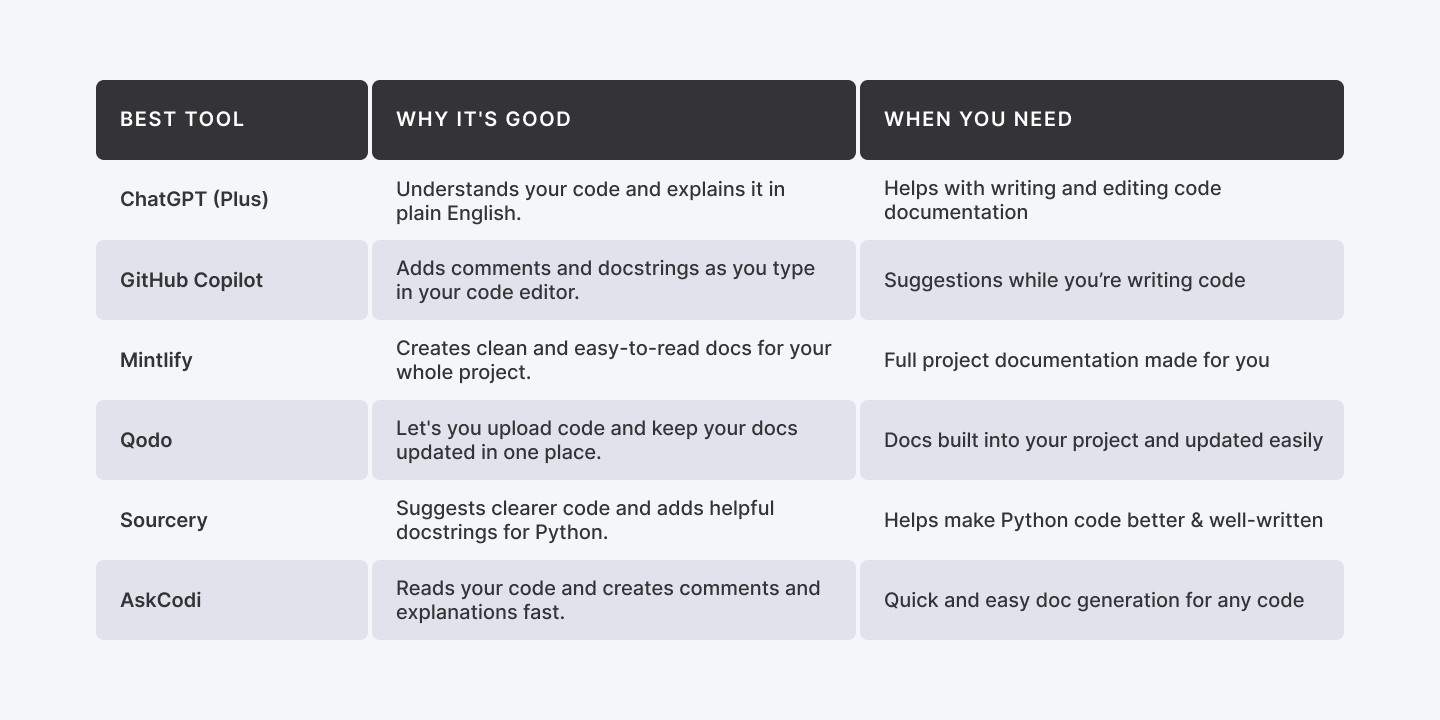
| Best Tool | Why It's Good | When You Need |
| ChatGPT (Plus) | Understands your code and explains it in plain English. | Helps with writing and editing code documentation |
| GitHub Copilot | Adds comments and docstrings as you type in your code editor. | Suggestions while you’re writing code |
| Mintlify | Creates clean and easy-to-read docs for your whole project. | Full project documentation made for you |
| Qodo | Let's you upload code and keep your docs updated in one place. | Docs built into your project and updated easily |
| Sourcery | Suggests clearer code and adds helpful docstrings for Python. | Helps make Python code better and well-written |
| AskCodi | Reads your code and creates comments and explanations fast. | Quick and easy doc generation for any code |
What is AI-powered coding documentation?
AI-powered coding documentation uses artificial intelligence to generate, enhance, and manage technical documentation. It automates the creation of code explanations, guides, and comments, making them more accurate and user-friendly. AI tools analyze codebases and provide documentation that is consistent, context-aware, and updated in real time.
AI assists developers by reducing manual work, ensuring high-quality and up-to-date documentation, and improving the overall development workflow. Key benefits include improved efficiency, reduced errors, and more accessible documentation for users. These tools may also provide suggestions for improving code quality and readability based on the generated documentation. While many tools focus specifically on syntax, the real value lies in end-to-end automation from generating READMEs to handling complex AI document processing for project specifications and technical requirements.
Handpicked AI tools for coding documentation
1. ChatGPT (Plus)

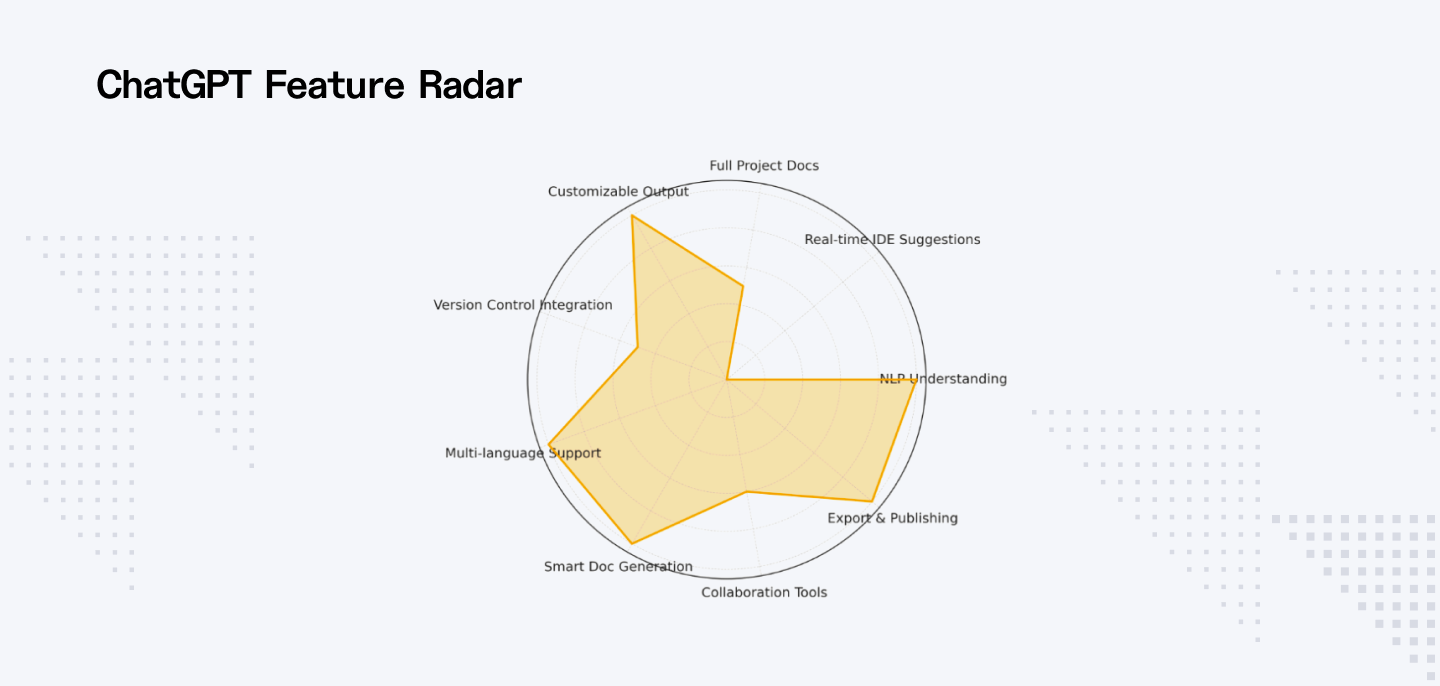
ChatGPT (Plus) is a versatile AI tool that understands natural language and provides contextual memory. It’s ideal for reviewing and editing code documentation in plain English. Whether you need to generate explanations, clarify code comments, or improve readability, ChatGPT simplifies the process.
How to use it
Step 1: Open ChatGPT and start a new chat
Go to the ChatGPT website and log in with your account. Once logged in, click on "Start Chat" to begin a conversation with the AI.
Step 2: Provide your code snippet

Next, paste your code snippet or describe your documentation needs. For example, you can type, "Please add docstrings for this Python function."
Step 3: Review AI-generated documentation

ChatGPT will generate documentation or suggestions based on your code. Take a moment to review the output to ensure it matches the coding style and structure you're aiming for.
Step 4: Refine and modify the documentation

If necessary, modify or refine the generated documentation. You can type additional instructions like, "Make this explanation simpler."
Step 5: Copy and integrate the documentation
After making any necessary changes, copy the generated documentation and integrate it directly into your project or codebase.
What I liked
- Natural language interaction: ChatGPT makes generating documentation feel like you're chatting with a colleague. You describe what you need in plain English, and it generates clear explanations, perfect for non-technical stakeholders or quick reviews.
- Customizable responses: If the first draft doesn’t quite hit the mark, you can refine your prompt to get a simpler or more detailed version. This flexibility makes it easy to adapt to different needs.
- Cross-language support: Whether you're coding in Python, JavaScript, or another language, ChatGPT adjusts to fit your coding environment and provides docstrings that match the syntax.
- Speed and efficiency: ChatGPT generates documentation in seconds, saving you time on writing out explanations or comments. It’s a great way to keep documentation up-to-date without slowing down your development process.
- Context awareness: With the Plus version, it remembers past conversations, so you don’t have to repeat yourself. This helps maintain consistency, especially for ongoing projects.
What I disliked
- Lack of deep context: ChatGPT struggles with complex or niche codebases. It may miss important details that are specific to your project, resulting in documentation that doesn't fully capture the nuances.
- Shallow coverage for advanced topics: It’s excellent for general documentation, but when dealing with advanced topics like algorithms, it may not provide the depth you need.
- No integration with code hosting platforms: ChatGPT doesn’t integrate with GitHub or GitLab, so you’ll need to manually add the generated documentation into your project.
- Inconsistent updates: The tool doesn’t automatically sync documentation with changes in the code, so you’ll need to manually update it to keep it current.
Pricing
- Free Plan: GPT-4.1 mini, limited file uploads, basic voice mode, web access, image tools.
- Plus Plan ($20/month): GPT-4.5 preview, more model access, advanced voice/video, projects & tasks.
- Pro Plan ($200/month): Full model access, deeper research, advanced voice/video, Codex & Operator tools.
Who should use ChatGPT (Plus)
- Developers who want fast, efficient help with documentation.
- Non-technical users who need simple code explanations.
- Team leads who need quick internal code documentation.
- Content writers explain technical concepts clearly.
- Open-source contributors are creating docs with less effort.
- New developers are learning to write proper docstrings.
- Educators should prepare clear, well-documented code examples.
2. GitHub Copilot

GitHub Copilot is an AI-powered coding assistant that helps developers write code and documentation more efficiently. It suggests code completions, docstrings, comments, and documentation automatically while you code. Integrated directly into your IDE (like Visual Studio Code), it provides real-time support to enhance productivity.
How to use it
Step 1: Install GitHub Copilot
To get started, install GitHub Copilot in your preferred IDE (such as Visual Studio Code). Search for the GitHub Copilot extension in the IDE's plugin marketplace and install it.
Step 2: Start writing code

Open your IDE and start writing a simple Python function. For example, let's write a function that calculates the area of a rectangle. As you write it, GitHub Copilot will start suggesting documentation.
Step 3: Accept or modify suggestions

If you’re happy with the docstring, press Tab to accept it. If you want to make changes, you can modify the docstring directly or ask Copilot to expand it by typing a comment like: “Please add more details about the parameters and return value.”
Step 4: Request more detailed documentation
If you want more detailed documentation, you can type a comment like: “Please provide a detailed explanation of the function, including an example usage.
Step 5: Review and refine

Once Copilot generates the docstring, review it to ensure it’s clear and provides all necessary information.
Step 6: Commit Code with Documentation
Once you’re satisfied with the generated documentation, save the file and commit your changes. The function now includes a clear and detailed docstring.
What I liked
- Real-time, in-line suggestions: Copilot suggests docstrings and comments as you write code, keeping you in the flow. You don’t have to stop coding to think about documentation, which makes your workflow way smoother.
- Integrated directly into your IDE: It works seamlessly inside your IDE, like VS Code, so there’s no need to jump between tools. Everything feels natural, like a helpful extension of your coding environment.
- Context-aware documentation: Copilot understands your code's context and generates relevant, tailored documentation. It helps ensure that the generated docstrings actually match your code, from parameters to return values.
- Saves time on repetitive docs: Writing boilerplate documentation is a thing of the past with Copilot. It auto-generates docstrings for functions, methods, and classes, saving you time on the repetitive stuff.
- Supports multiple languages: Whether it’s Python, JavaScript, or any other language, Copilot adapts to what you're using. It’s great for multi-language projects and keeps things consistent across the board.
What I disliked
- Vague suggestions at times: Sometimes the docstrings are too general and don’t cover the specifics. While it’s useful, you may find yourself editing them to add more relevant details.
- Struggles with niche code logic: Copilot can have trouble with highly specialized code. It may miss the nuances of custom libraries or unique algorithms, leaving you to do the heavy lifting on the documentation.
- Basic docstrings for advanced functions: For complex code or advanced algorithms, the docstrings can be pretty basic. You'll often need to go back and add more detail for things that aren't standard.
- Overuse of comments: At times, Copilot adds more comments than necessary. While helpful, it can sometimes clutter your code with redundant explanations that just aren’t needed.
Pricing
- Free Plan: Unlimited repos, 2,000 CI/CD minutes, Dependabot, 500MB storage.
- Pro Plan ($4/user/month): Codespaces access, protected branches, reviewers, wikis, 3,000 CI/CD minutes.
- Enterprise Plan ($21/user/month): All Team features + managed users, SCIM, audit logs, compliance reports.
Who should use GitHub Copilot?
- Developers who want fast, in-line documentation while coding.
- Teams need consistent, real-time doc suggestions.
- Beginners who need help writing comments and docstrings.
- Open-source contributors documenting code before PRs.
- Engineers manage large codebases with many functions.
- Developers work across multiple programming languages.
- Anyone who wants to save time and keep their documents high-quality.
3. Mintlify

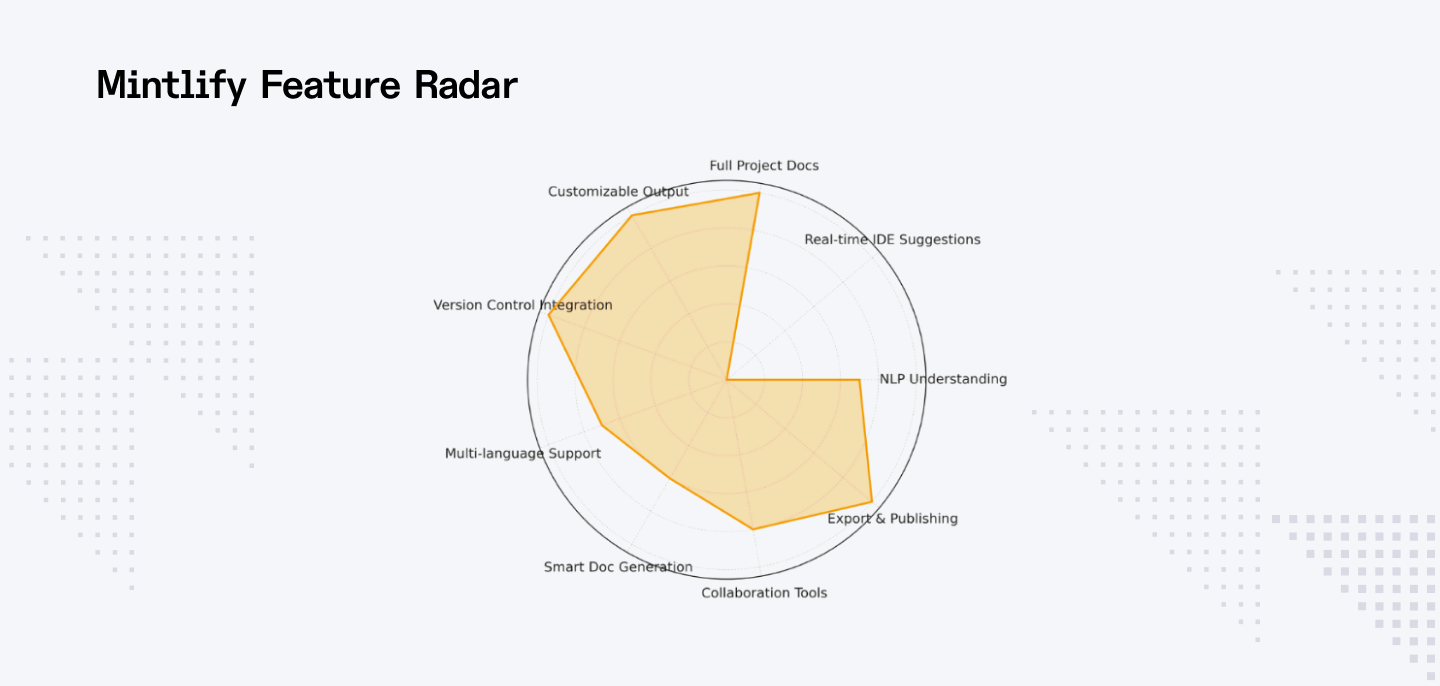
Mintlify is an AI-powered documentation tool that automatically generates clear, easy-to-read, and structured documentation for your codebase. It scans your project, analyzes your code, and provides high-quality documentation with minimal effort, ensuring consistency across your entire codebase.
How to use it
Step 1: Sign up and link your project

Start by creating an account on Mintlify. After logging in, link your GitHub repository or upload your project files to Mintlify.
Step 2: Auto-generate documentation

Once your project is linked, Mintlify will automatically generate documentation for your codebase. It will scan through your project and create documentation for them.
Step 3: Customize the documentation
If the auto-generated documentation isn’t perfect, Mintlify allows you to edit and refine the content. You can add more examples, explanations, or adjust formatting.
Step 4: Review and publish
After reviewing the generated documentation, you can publish it directly on your website or internal portal. Mintlify provides various export options, including HTML, Markdown, or integration with a documentation site.
Step 5: Share and collaborate
Once the documentation is ready, share the link with your team or collaborators for review and feedback.
What I liked
- Easy GitHub integration: Mintlify connects with GitHub easily, scanning your repo and generating docs in a flash. It’s perfect for teams that want a smooth, hassle-free setup with minimal effort.
Clean, readable documentation: The docs Mintlify generates are clear, well-structured, and easy to read. It automatically organizes everything in a way that makes sense, so you don’t have to spend time formatting or editing. - Customizable documentation: If you want to tweak the generated docs, Mintlify lets you customize them to fit your needs. You can adjust examples, explanations, and formatting to match your project’s style.
- Saves time on large projects: For big codebases, Mintlify is a huge time-saver. It auto-generates documentation for entire projects, so you don’t have to write it manually file by file.
- Collaborative sharing: Once your docs are ready, Mintlify makes it easy to share them with your team. You can get feedback and make revisions quickly, which is perfect for collaborative work.
What I disliked
- Docs can be too basic: Sometimes, Mintlify’s auto-generated docs can be too simple. You might need to add more technical detail or examples for more complex code.
- Limited language support: Mintlify doesn’t support every programming language yet, which can be a dealbreaker if you’re working with less common tech stacks. It’s great for most languages but still growing in terms of coverage.
- Features locked behind paid plans: Some of the more advanced features are only available in the paid plans. If you need full customization or more integrations, you’ll have to upgrade to get the best out of it.
- Requires GitHub: If you're not using GitHub for version control, you’re out of luck. Mintlify relies heavily on GitHub integration, so teams using other platforms might find it limiting.
Pricing
- Free Plan: For individual hobbyists, includes a single editor, a custom domain, and a web editor.
- Pro Plan ($150/month): For small teams, supports 5 editors, an AI assistant, and preview deployments.
- Growth Plan ($550/month): For growing teams, supports 20 editors, includes everything in Pro.
- Enterprise Plan (Custom Pricing): All Growth features + dedicated migration, end-user auth, and custom setup.
Who should use Mintlify?
- Non-coders needing docs without manual writing
- Teams wanting clear and consistent documentation
- Project managers needing docs without technical writers
- Developers focused on code, not documentation tasks
- Startups need fast, easy doc generation tools
- Open-source contributors preparing docs before submissions
- Anyone needing clean, understandable project documentation
4. Qodo

Qodo is a developer-focused tool for writing, organizing, and sharing code documentation. It streamlines how teams document projects by offering a clean interface, markdown support, and collaboration features tailored specifically for coding environments.
How to use it
Step 1: Sign up and log in
Go to the Qodo website, sign up for an account, or log in if you already have one.
Step 2: Upload your code

Upload your code files directly to Qodo. You can upload your entire codebase, and Qodo will automatically analyze it.
Step 3: Generate documentation

Once Qodo processes your code, it will generate documentation for the functions, methods, and classes in your project. The generated documentation will include information on parameters, return values, and a brief explanation of the code's functionality.
Step 4: Edit and customize
Review the generated documentation and make any necessary edits. You can add examples or clarify the documentation to suit your needs.
Step 5: Download and share
Once you’re satisfied with the documentation, you can download it in various formats (like HTML, Markdown) or generate a shareable link for others to view.
What I liked
- Auto-generates docs for entire codebases: Qodo makes it easy to generate documentation for your whole project at once. Upload your code, and it automatically creates documentation for functions, methods, and classes—saving you tons of time.
- Works with multiple programming languages: Whether you’re working with Python, Java, or JavaScript, Qodo adapts to different coding languages and creates consistent docs. It’s flexible and handles a wide range of languages without missing a beat.
- Simple setup: Getting started with Qodo is straightforward. You simply upload your code, and within minutes, it starts generating documentation, so you can focus on the coding, not the doc-writing.
- Customizable templates: Qodo offers templates that you can customize to match your project’s style. This makes it easy to adjust the generated documentation so it fits your team’s specific needs.
- Great for team collaboration: If you're working in a team, Qodo allows for smooth collaboration. You can share documentation with teammates and gather feedback to ensure everything is clear and complete.
What I disliked
- Struggles with complex code: While Qodo is great for most code, it can struggle with very complex or niche code. For specialized frameworks or intricate logic, the generated docs might miss important details.
- Free plan has limited customization: The free plan doesn’t offer much in terms of customization. You’ll need to upgrade to get more flexible editing options and access to advanced features.
- Misses some code details: Occasionally, Qodo misses out on documenting some important parts of the code. While it generates basic docs well, you may need to add details manually for a more complete picture.
- No real-time doc editing: Qodo doesn’t support live editing as you code, so you’ll need to generate and review docs separately. This means you have to manage updates manually, which can be a bit cumbersome.
Pricing
- Free Plan: 250 messages & tool use per month.
- Pro Plan ($30/user/month): 5,000 messages, issue tracking, PR descriptions, coding best practices.
- Enterprise Plan ($45/user/month): Full platform access, dashboards, admin tools, SSO, multi-repo support.
Who should use Qodo?
- Developers needing fast docs without manual effort
- Teams needing consistent docs across shared projects
- Open-source contributors documenting code before release
- Startups needing quick, automated doc generation
- Project managers track code with clear documentation
- Anyone managing a large, frequently updated codebase
- Non-tech users needing easy, automated documentation
5. AskCodi

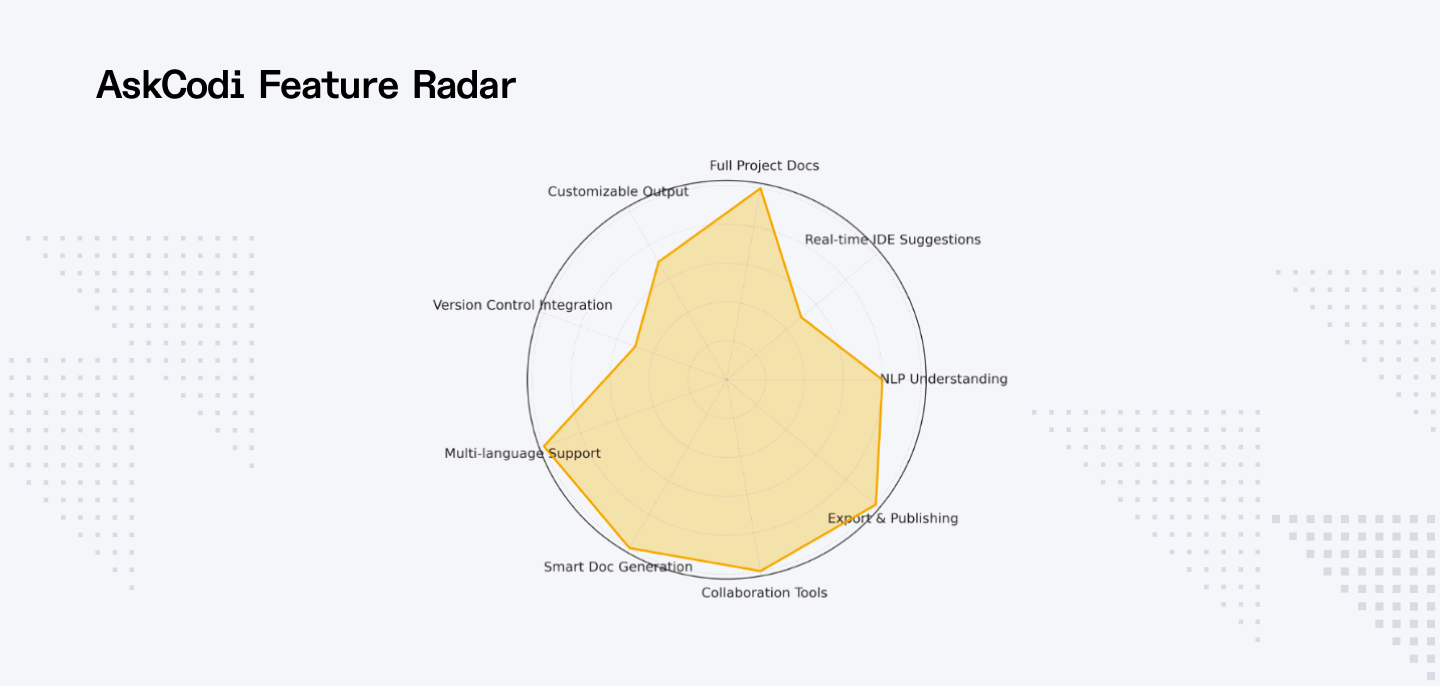
AskCodi is an AI-powered tool that helps automate the process of generating documentation for your code. It can suggest docstrings, comments, and even explanations for your codebase, allowing you to focus on writing the logic while it handles the documentation.
How to use it
Step 1: Sign up and log in
Visit the AskCodi website and sign up for a free or paid account. After signing up, log in to access the dashboard.
Step 2: Upload your code

Once you're logged in, upload your project files. You can upload a zip file of your entire codebase or integrate with a repository if you want to work with a live project.
Step 3: Analyze your code
AskCodi will scan and analyze the uploaded codebase to generate documentation. This process usually takes a few seconds to a few minutes.
Step 4: Review generated documentation

After the analysis is complete, AskCodi will generate documentation for the various functions and methods in your codebase. You can review and refine this documentation, adding additional details.
Step 5: Customize and edit
If necessary, edit the documentation directly in AskCodi. You can adjust the language, add more examples, or modify the format to match your needs.
Step 6: Export and share
Once you are satisfied with the documentation, export it in your desired format (HTML, Markdown, etc.) or share a link with your team for collaborative review.
What I liked
- Fast doc generation: AskCodi quickly generates docstrings and comments for your code. It analyzes your codebase and produces documentation in just a few minutes, making it perfect for rapid documentation needs.
- Works across multiple languages: Whether you’re coding in Python, JavaScript, or other languages, AskCodi can handle it. It supports multiple languages, ensuring you get consistent documentation no matter your tech stack.
- Customizable templates: AskCodi gives you the option to adjust templates to fit your project’s style. This is great for teams that need documentation that aligns with their specific guidelines or preferences.
- Easy setup and use: Uploading your code to AskCodi is simple, and the tool generates docs almost instantly. It integrates smoothly into existing workflows without requiring much setup or configuration.
- Collaboration features: AskCodi also supports team collaboration. Once your docs are ready, you can share them with your team and get feedback, ensuring everyone is on the same page.
What I disliked
- Limited customization in the free version: The free plan is a bit limited in terms of customization options. If you need more control over the generated docs, you'll need to upgrade to one of the paid plans.
- Struggles with complex code: While AskCodi works well for basic code, it can struggle with more complex logic. The documentation may not capture the full depth of specialized code, requiring manual adjustments.
- Doesn’t offer live editing: AskCodi doesn’t update documentation in real time as you code. This means you’ll have to manually adjust the docs whenever your code changes, which can be a hassle.
- Needs manual edits for detailed explanations: The generated documentation is good for basic details, but you’ll likely need to add more in-depth explanations for complex functions or algorithms.
Pricing
- Premium Plan ($14.99/month): 500 AI credits, 10 LLM credits, 3 code spaces, all extensions, autocomplete plugin.
- Ultimate Plan ($34.99/month): 1500 AI credits, 25 LLM credits, 5 codespaces, all extensions, autocomplete plugin, unlimited use of top AI models.
Who should use AskCodi?
- Developers needing fast, automatic code documentation
- Teams maintaining large, consistent code documentation
- Open-source contributors documenting work efficiently
- Non-tech users needing readable code explanations
- Startups seeking fast docs with minimal setup
- Project managers need clear documents for tracking
6. Sourcery

Sourcery is an AI-powered tool focused on helping developers write cleaner, more efficient code. It automatically suggests improvements to your code and generates documentation based on your code's structure. It's great for developers looking to improve code quality while also keeping documentation up to date.
How to use it
Step 1: Sign up and log in
Go to Sourcery’s website, sign up for an account, or log in if you already have one.
Step 2: Install the Sourcery plugin

Install the Sourcery plugin in your IDE (e.g., Visual Studio Code, PyCharm). Follow the instructions on the Sourcery website for easy installation.
Step 3: Connect your code
Once installed, connect your project or repository to Sourcery by syncing it with your IDE. Sourcery will start analyzing the code in your project.
Step 4: Review suggestions

Sourcery will automatically suggest improvements for your code as you write. It highlights areas where your code can be optimized or cleaned up, and it also generates documentation for the optimized code.
Step 5: Implement changes
Accept or modify the suggestions provided by Sourcery. It will not only improve your code but also generate docstrings and comments.
Step 6: Save and share

After accepting the suggestions, save the updated code. You can then share the improved code and its generated documentation with your team or clients.
What I liked
- Real-time code quality suggestions: Sourcery doesn’t just help with documentation, it improves your code as you go. It provides real-time suggestions for code optimization and automatically generates docstrings, keeping both your code and documentation top-notch.
- Works seamlessly with IDEs: Sourcery integrates well with popular IDEs like VS Code and PyCharm. You get suggestions and documentation directly in your coding environment, so it doesn’t interrupt your workflow.
- Code optimization with documentation: As Sourcery helps improve your code quality, it also generates helpful documentation. This means your code becomes cleaner, more efficient, and better documented at the same time.
- Smart suggestions based on context: Sourcery understands the context of your code and provides relevant suggestions. Whether it’s code improvements or docstring generation, the recommendations fit with your project’s specific needs.
- Boosts code readability and performance: It suggests changes that not only improve performance but also make your code more readable. This results in better documentation that matches the optimized code.
What I disliked
- Free plan has limited features: The free plan offers fewer suggestions and features, which can feel limiting for larger projects. You’ll need to upgrade to unlock more in-depth analysis and documentation capabilities.
- Recommendations can interrupt workflow: While helpful, Sourcery’s suggestions sometimes interrupt the flow of coding. Small code changes can break your focus, especially when you're in the middle of a larger task.
- Doesn’t generate full docs automatically: While Sourcery does a great job with docstrings, it doesn't generate comprehensive documentation for the entire codebase. You might need to manually fill in the gaps.
- Focuses more on code than documentation: Sourcery’s main focus is on improving code quality, so the documentation generation isn’t as extensive as some of the other tools. You may need to supplement it with additional documentation for more complex sections.
Pricing
- Free Plan: Pro for open-source repos.
- Pro Plan ($12/month per seat): Code reviews, pull request summaries, diagrams, custom rules.
- Team Plan ($24/month per seat): All Pro features + repo analytics, secrets & SAST scanning, bring your LLM.
- Enterprise Plan (Custom Pricing): All Team features + self-hosting, priority support, success manager, invoicing.
Who should use Sourcery?
- Developers are improving code quality with minimal effort
- Teams needing clean code and consistent documentation
- Code optimizers wanting auto-generated docstrings
- Beginners learning from smart, real-time suggestions
- Project managers ensure clean, well-documented code
- Anyone boosting code performance and documentation together
Key features you should look for in a coding documentation tool
1. Natural Language Understanding (NLP)
The tool should be able to explain your code in plain, readable English. It must go beyond technical jargon to clearly communicate the logic and purpose of your functions, classes, or scripts.
- Why it matters:
This helps junior developers, non-technical stakeholders, and even your future self quickly understand what the code is doing without diving into every line.
- What to look for:
Tools like ChatGPT that interpret code structure and generate clear summaries, explanations, or docstrings based on context.
2. Real-time, in-line suggestions
The tool should offer suggestions for comments or docstrings as you write code, directly within your IDE.
- Why it matters:
You can stay focused on coding while automatically keeping your documentation up to date. This reduces the need to go back later and fill in missing details.
- What to look for:
Integration with IDEs like Visual Studio Code or PyCharm, where documentation appears instantly while you work.
3. Full project documentation generation
The tool should be able to scan and document an entire codebase, not just single files or functions. This includes automatically generating summaries, navigation structures, and descriptions across modules.
- Why it matters:
When working with larger teams or legacy code, it saves massive amounts of time and provides consistent structure to your documentation.
- What to look for:
Solutions like Mintlify or Qodo that support bulk documentation from GitHub repositories or uploaded code folders.
4. Editable and customizable output
Generated documentation should not be fixed. You should be able to customize wording, formatting, structure, and examples to fit your team’s style guide or user needs.
- Why it matters:
Documentation should adapt to your audience—whether you're writing for senior engineers, clients, or internal QA teams.
- What to look for:
Features that let you refine docstrings, add examples, change formatting, or provide multiple versions of explanations.
5. IDE and version control integration
A good documentation tool should connect directly to your development environment and code repositories.
- Why it matters:
When your code changes, your documentation should update too. This avoids outdated or mismatched documentation and improves developer confidence.
- What to look for:
Tools that integrate with GitHub, GitLab, or Bitbucket and allow documentation updates in pull requests or directly from your IDE.
6. Support for multiple programming languages
Your AI coding documentation tool should support all the programming languages your team uses. Some tools are optimized for Python but may not support TypeScript, Java, or other languages.
- Why it matters:
As your projects evolve or your tech stack grows, your documentation tool should still work without needing separate tools for each language.
- What to look for:
Confirm language support in the documentation or feature list before committing.
7. Smart docstring and comment generation
The tool should generate meaningful docstrings that include parameter explanations, return types, and function behavior. It should also insert helpful inline comments to clarify complex logic.
- Why it matters:
Well-written docstrings speed up onboarding, testing, and maintenance. They also reduce the need for repeated explanations during code reviews.
- What to look for:
Tools that use structured formats like Google Style, NumPy, or JSDoc and fill in each section accurately.
8. Collaboration and review features
If you work in a team, the tool should allow collaborative documentation—letting teammates suggest edits, leave comments, or review drafts before publishing.
- Why it matters:
Documentation often benefits from peer input. A team-reviewed document is more likely to be complete, accurate, and usable.
- What to look for:
Platforms that offer link sharing, permissions, comment threads, or integration into team workflows like Slack or Jira.
9. Export and publishing options
Once your documentation is generated, you should be able to export it in common formats like Markdown, HTML, or PDF. Ideally, it should also integrate with your internal wiki or documentation site.
- Why it matters:
Good documentation needs to be easily shared. Whether it's for internal portals, client handovers, or external publishing, flexibility is key.
- What to look for:
Tools that support exporting and embedding, or allow publishing directly to a hosted documentation site.
FAQs related to picking the right AI tools for coding documentation
1. What is AI-powered coding documentation?
AI-powered coding documentation automates the creation and management of code documentation. AI tools generate, enhance, and maintain technical documentation like code explanations, comments, and guides, ensuring they are accurate, up-to-date, and context-aware.
2. How does ChatGPT help with coding documentation?
ChatGPT helps by generating, reviewing, and editing code documentation in plain English. It clarifies code, creates docstrings, and improves readability with natural language understanding and contextual memory, making it ideal for developers needing quick and versatile help.
3. What makes GitHub Copilot useful for coding documentation?
GitHub Copilot auto-generates docstrings and comments while you write code. It integrates directly into your IDE and provides real-time documentation suggestions, helping developers maintain well-documented code without interrupting their workflow.
4. How does Mintlify generate project documentation?
Mintlify scans your project repository to auto-generate structured, easy-to-read documentation. It organizes and presents codebase information in a user-friendly way, making it ideal for large projects with multiple contributors.
5. What is the benefit of using Qodo for coding documentation?
Qodo integrates with your IDE to maintain and update project documentation directly within the codebase. It ensures documentation stays up-to-date as the code evolves, reducing the risk of outdated documentation.
6. Who should use Sourcery for coding documentation?
Sourcery is best for Python developers. It automatically improves code readability and adds relevant documentation suggestions, enhancing both code quality and documentation at the same time.
7. Can AI tools help maintain up-to-date documentation?
Yes, AI tools like Qodo and GitHub Copilot integrate directly into the coding environment and keep documentation synchronized with the codebase. This ensures documentation remains current and reduces manual effort.
8. What key features should I look for in a coding documentation tool?
Look for AI tools that offer natural language processing (NLP) for generating content in plain language, real-time suggestions for in-line documentation, integrations with IDEs, and the ability to auto-generate and customize documentation to fit your needs.


