
File extensions aren’t just the trailing characters of a filename - they dictate how files are processed, validated, and stored. Whether you're sorting logs, managing data files, or handling user uploads, the file suffix is critical to your application's logic and security.
As Python developers, you must have seen how overlooking even a small detail like a file extension can lead to unexpected issues in production.
In this guide, we'll dive into one of Python's fundamental file-handling tasks: extracting a file’s suffix (or extension). We'll explore both basic methods, like using os.path.splitext(), and modern, object-oriented approaches with pathlib, along with advanced techniques for tackling compound and unconventional extensions. By the end of this article, you'll have a robust set of tools and best practices to ensure your file handling is both reliable and scalable, no matter the project scenario.
Join Index.dev today and get matched with top global companies for high-paying remote jobs!
Understanding File Extensions
A file extension is the suffix at the end of a filename, typically preceded by a period (.), that indicates the file's data type. For instance, in the filename document.pdf, .pdf signifies that the file is in the Portable Document Format. Correctly retrieving and handling file extensions is essential for tasks like:
- Validation: Ensuring the file is of an expected type.
- Data Processing: Sorting files or determining processing logic.
- Security: Verifying that uploads match allowed file types.
- Interoperability: Working with different systems and platforms.
Key Challenges
Before we jump into the implementations, consider these challenges:
- Reliability: Extensions can be compound (e.g., .tar.gz), missing, or malformed.
- Performance: Processing thousands of files requires optimized code.
- Security: Extensions are a critical part of validation and security checks.
- Cross-Platform Compatibility: Different operating systems handle paths differently.
Understanding these challenges will help you realize why a one-size-fits-all solution is rarely sufficient. With these considerations in mind, let's explore multiple approaches to reliably extract file suffixes in Python.
Also Read: How to Check If a Set Is Mutually Exclusive in Python
Method 1: Using os.path.splitext()
The os module provides the os.path.splitext() function, which splits a file path into the base name and its extension. This method is tried and tested, making it an ideal choice for many traditional Python projects.
Step-by-Step Guide
1. Import the Module:
import os
2. Use os.path.splitext():
# Define your file path
file_path = 'example.txt'

# os.path.splitext() returns a tuple: (base, extension)
filename, file_extension = os.path.splitext(file_path)

print(f"File extension: {file_extension}")  # Expected Output: .txt
Explanation
How It Works:
- The splitext() function scans the file path from right to left, identifying the period (.) that starts the extension and splitting the string accordingly, separating the extension from the rest of the path.
- Path('example.txt'): Converts the string path into a Path object, which provides numerous useful methods.
Advantages:
- Simplicity: No need for manual string manipulation.
- Reliability: Handles multi-level paths and most common edge cases (e.g., filenames with no extension return an empty string).
Best For:
Legacy codebases or simple scripts where quick, direct string operations are desired.
Edge Cases:
- Files like .bashrc (hidden files in Unix) may be treated as having no extension.
- The method handles normal filenames reliably.
Using os.path is advantageous when working in legacy codebases or simple scripts. However, if you require an object-oriented approach, consider using pathlib.
Method 2: Utilizing pathlib.Path.suffix
In a previous project, we faced a challenge while processing file uploads on different operating systems. Our initial solution, which worked fine on Windows, failed on Linux due to hidden files like .bashrc being misinterpreted. Migrating to pathlib.Path provided a consistent, object-oriented approach that handled these edge cases gracefully. The transition not only improved our code’s reliability but also made it easier for the entire team to maintain.
Introduced in Python 3.4, the pathlib module offers an object-oriented approach to file path manipulations. Its Path class simplifies the process of extracting file extensions.
Step-by-Step Guide
Step 1: Set Up Base Structure
First, we'll import required modules and create our data structure:
from pathlib import Path
from typing import Union, List, Optional
from dataclasses import dataclass

@dataclass
class FileInfo:
    """Structured container for file information"""
    name: str
    extension: str
    is_valid: bool
    full_path: Path
The FileInfo dataclass provides a clean interface for storing file information. Using @dataclass automatically generates special methods like __init__ and __repr__.
Step 2: Create Extension Handler Class
class PathExtensionHandler:
    def __init__(self, allowed_extensions: set = None):
        self.allowed_extensions = {ext.lower() for ext in (allowed_extensions or set())}
This class initializes with an optional set of allowed extensions, converting them to lowercase for case-insensitive comparison.
Step 3: Implement Core Analysis Method
def analyze_file(self, file_path: Union[str, Path]) -> FileInfo:
        path = Path(file_path)
        return FileInfo(
            name=path.stem,
            extension=path.suffix.lower(),
            is_valid=self._validate_extension(path.suffix),
            full_path=path.absolute()
        )
The analyze_file method processes a file path and returns structured information. Path.stem gets the filename without extension, Path.suffix gets the extension, and Path.absolute() returns the full path.
Step 4: Add Validation Logic
def _validate_extension(self, extension: str) -> bool:
        if not self.allowed_extensions:
            return True
        return extension.lower() in self.allowed_extensions
The validation method checks if an extension is allowed, returning True if no restrictions are set.
Step 5: Usage Example
# Create handler with allowed extensions
handler = PathExtensionHandler({'.txt', '.pdf', '.docx'})

# Analyze a file
info = handler.analyze_file('document.pdf')
print(f"Name: {info.name}")
print(f"Extension: {info.extension}")
print(f"Is Valid: {info.is_valid}")
print(f"Full Path: {info.full_path}")
Explanation
How It Works:
The Path object represents a filesystem path and provides attributes like .suffix for retrieving the last extension and .suffixes for all extensions.
Advantages:
- Object-Oriented: Simplifies code readability and manipulation.
- Cross-Platform: Automatically adapts to the operating system’s file path conventions.
Best For:
Modern applications and those that require further path manipulations beyond simple string operations.
Tip:
- file_path.suffix retrieves only the last extension (for example, it returns .txt from archive.tar.gz). This method is perfect for simple cases where you only need the final extension.
- file_path.suffixes returns all extensions as a list (for example, it returns ['.tar', '.gz'] from archive.tar.gz). This is especially useful when dealing with files that have compound extensions.
pathlib is recommended for modern Python applications due to its clarity and additional functionalities.
Method 3: Batch Processing (Performance-Oriented)
When you need to process many files efficiently, here's an optimized approach:
Step-by-Step Guide
Step 1: Create Batch Processor Class
from functools import lru_cache

class BatchExtensionProcessor:
    def __init__(self, root_dir: Union[str, Path]):
        self.root_dir = Path(root_dir)

Step 2: Implement Cached Extension Getter
@lru_cache(maxsize=1000)
    def get_extension(self, filename: str) -> str:
        return Path(filename).suffix.lower()
The @lru_cache decorator caches results, improving performance for repeated lookups.
Step 3: Add Directory Processing
def process_directory(self, pattern: str = "*") -> Iterator[tuple[str, str]]:
        for file_path in self.root_dir.glob(pattern):
            if file_path.is_file():
                yield (file_path.name, self.get_extension(file_path.name))
This generator method efficiently processes directories without loading everything into memory.
Step 4: Add Statistics Collection
def get_extension_stats(self) -> dict[str, int]:
        stats = {}
        for _, ext in self.process_directory():
            stats[ext] = stats.get(ext, 0) + 1
        return stats
Step 5: Usage Example
# Create processor for a directory
processor = BatchExtensionProcessor('/path/to/files')

# Process all PDF files
for filename, ext in processor.process_directory("*.pdf"):
    print(f"Found {filename} with extension {ext}")

# Get extension statistics
stats = processor.get_extension_stats()
print(f"Extension counts: {stats}")
Performance Considerations
While both methods are effective, performance may vary depending on the context:
- os.path.splitext()
- Speed: Generally faster because it operates directly on strings.
- Usage: Ideal for scripts processing thousands of file paths quickly.
- pathlib.Path.suffix
- Overhead: Instantiating Path objects may introduce slight overhead.
- Usage: Best for modern applications that benefit from an object-oriented approach and require additional path manipulation functionalities.
For performance-critical applications, evaluate both approaches in your specific context.
Handling Edge Cases
When extracting file extensions, it’s crucial to consider edge cases, such as files without extensions or hidden files on Unix systems.
Example: Handling Files Without an Extension
from pathlib import Path

def get_file_extension(file_path: str) -> str:
    """
    Returns the file extension if available; otherwise, indicates that no extension was found.

    Parameters:
        file_path (str): The path to the file.

    Returns:
        str: The file extension or a message indicating absence of an extension.
    """
    path = Path(file_path)
    if path.suffix:
        return path.suffix
    else:
        return "No extension found"

# Test the function
print(get_file_extension("example.txt"))  # Expected Output: .txt
print(get_file_extension("hiddenfile"))     # Expected Output: No extension found
Explanation
Logic:
The function checks whether the .suffix attribute is non-empty. If empty, it returns a custom message.
Importance:
Handling such cases prevents errors during file processing and ensures that your application can gracefully manage unexpected file naming conventions.
Flowchart: How the Regex Pattern Works
To further clarify the regex matching process described above, the following flowchart illustrates each step of how the pattern identifies a file extension.
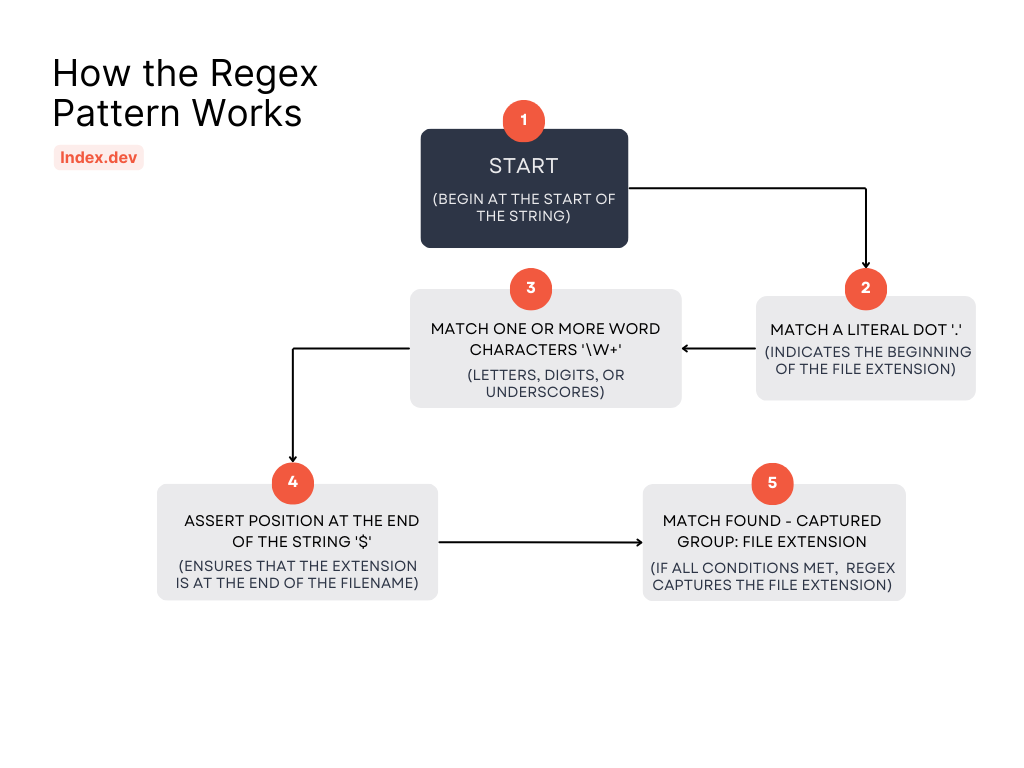
As illustrated in the flowchart above, the regex pattern starts by matching a literal dot, followed by one or more word characters, and finally ensures that the match is at the end of the string.
Step-by-Step Breakdown:
- Start: Begin at the start of the string.
- [.]: Match a literal dot '.', which indicates the beginning of the file extension.
- [(\w+)]: Match one or more word characters (letters, digits, or underscores). This group represents the file extension.
- [$]: Assert that the current position is at the end of the string, ensuring that the extension is at the end of the filename.
- Match Found: If all conditions are met, the regex captures the file extension.
Example:
For the filename example.txt:
- The pattern matches the dot '.' followed by 'txt' at the end of the string.
- The captured group is 'txt', which is the file extension.
Common Pitfalls to Avoid
1. Don't Split on Dot
# Wrong
extension = filename.split('.')[-1]  # Can fail on files with no extension

# Right
extension = Path(filename).suffix
2. Don't Forget Case Sensitivity
# Wrong
if extension == '.PDF':  # Might miss .pdf files

# Right
if extension.lower() == '.pdf':
Explore More: How to Use Regex for String Replacement in Python
Best Practices
1. Production-Ready Approaches:
- Use `pathlib` for modern applications
- Use `os.path` for legacy code or simple scripts
- Consider batch processing for large-scale operations
2. Performance Considerations:
- Use BatchExtensionProcessor for large directories
- The LRU cache size (1000) can be adjusted based on your needs
- Generator patterns prevent memory issues with large file sets
3. Documentation & Advanced Patterns:
- If your use case requires more complex file extension parsing (like custom naming patterns or special formats), you might want to explore regex-based approaches. We recommend checking out Python's official `re` module documentation.
- PyPI packages specifically designed for file type detection and validation
4. Cross-Platform Compatibility:
- pathlib handles path differences between operating systems
- Always use Path objects for path manipulation
- Use Path.resolve() for canonical paths when needed
5. Error Handling:
try:
    info = handler.analyze_file(file_path)
except OSError as e:
    print(f"Error processing file: {e}")
Use Cases and Applications
- Web Applications: Validate and filter user-uploaded files by checking their extensions and MIME types before processing.
- Data Pipelines: Automatically segregate and preprocess files based on their types in ETL processes.
- Logging and Monitoring: Extract file extensions for logging purposes to aid in debugging and monitoring file system activities.
- Cross-Platform Tools: Use pathlib to ensure your file operations work uniformly across different operating systems.
Learn More: Top 6 StackOverflow Alternatives for Software Developers
Conclusion
Throughout this guide, we have explored three robust methods to handle file extensions in Python, each designed to excel in different scenarios. While the reliable os.path.splitext() continues to serve as a trustworthy solution for straightforward file operations and legacy codebases, the modern pathlib.Path.suffix offers a clean, and the object-oriented approach proves to be perfect for contemporary applications.
For scenarios where you require high-performance file processing, we've also covered optimized batch processing techniques that efficiently handle large volumes of files.
As you develop your Python applications, the choice between these approaches will depend on your specific requirements. Whether you're building web applications that need to validate user uploads, creating data pipelines that process thousands of files, or developing system utilities that need to work across different platforms, you now have the knowledge to implement robust and maintainable file extension handling. Remember that while the syntax may vary between methods, the principles of reliability, security, and maintainability remain constant across all approaches.
For Developers:
Join Index.dev today and get matched with top global companies for high-paying remote jobs. Build your career with the best opportunities!
For Companies:
Looking to hire skilled Python developers who understand modern async patterns? Index.dev connects you with pre-vetted tech talent within 48-hours with a risk-free 30-day trial. Start hiring now!


