
Let’s be honest, as developers, we spend a huge part of our day in the browser. Whether it’s reviewing pull requests, reading docs, testing features, or searching for solutions, the right tools can make a world of difference.
That’s where AI-powered Chrome extensions come in. They cut down on the boring stuff, help us work smarter, and keep us in the flow.
In this listicle roundup, we’ve listed our favorite AI Chrome extensions for 2025 that can make your developer life easier.
Join Index.dev and code your way to a high-impact career.
How we selected these Chrome extensions
We selected these Chrome extensions through hands-on testing and community feedback, focusing on tools that directly improve developer productivity. Each extension was evaluated for its relevance to coding, testing, or design workflows, AI integration for automation or insights, and ease of use within a browser environment.
We prioritized Chrome and Chromium-based compatibility to ensure accessibility across popular browsers like Brave and Edge. Privacy and security were key factors, especially for code-related tools.
Finally, we considered community trust by reviewing user ratings, update frequency, and real-world developer adoption, ensuring that each recommended extension is reliable, practical, and worth installing in 2025.
Explore the five powerful AI agents that are changing how developers build software.
TL;DR
- Qodo Merge AI, best use: AI code reviews and PR chat inside GitHub.
- daily.dev, best use: New‑tab feed for developer news and tutorials.
- Scalenut, best use: Quick AI writing, rephrasing, and docs.
- Otter.ai, best use: Live meeting transcription with AI summaries.
- Fake Filler, best use: One‑click dummy data for form testing.
- ColorZilla, best use: Eyedropper and CSS gradients for UI work.
- Wappalyzer, best use: Instant tech‑stack detection on any site.
- Lighthouse, best use: Performance, accessibility, and SEO audits.
- Octotree, best use: IDE‑like file tree for faster GitHub nav.
- Checkbot, best use: Crawl‑based SEO, speed, and security checks.
- LT Debug, best use: Cross‑browser replay/debug via LambdaTest.
- Ghostery, best use: Block ads/trackers for distraction‑free browsing.
The best AI Chrome extensions for developers and coders
1. Qodo Merge AI
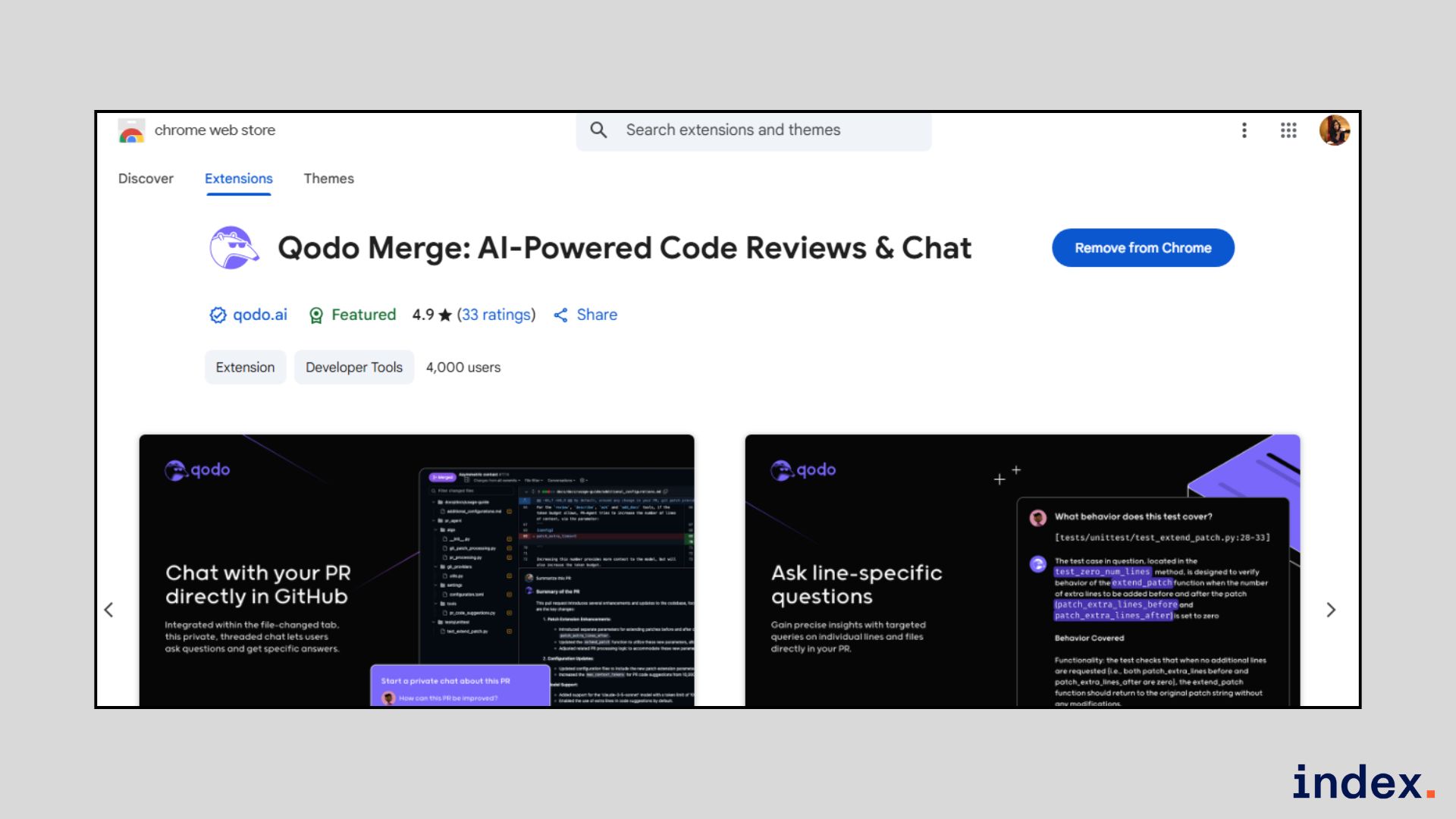
Best for: AI-powered, context-aware code reviews and PR chat inside GitHub.
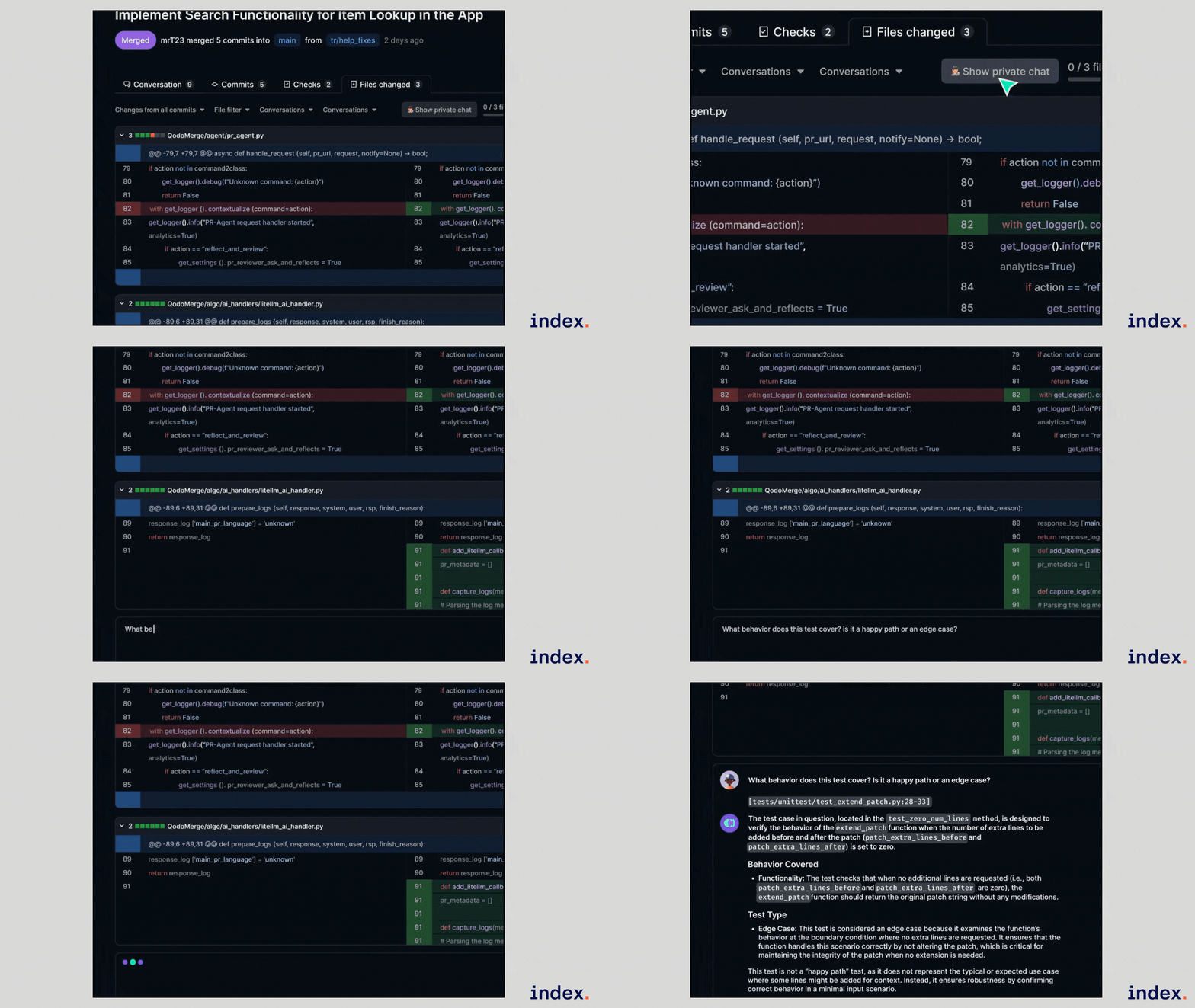
What it does
Qodo Merge AI is a Chrome extension that integrates directly into your GitHub environment, providing AI-driven pull request reviews, contextual chat, and automated suggestions. It’s designed to help developers quickly identify issues, optimize code, and streamline PR workflows without leaving GitHub. Public repositories get full access for free, while private repositories can access advanced features like documentation suggestions and component analysis through Qodo Merge Pro.
In development workflows, it’s especially useful for:
- Reviewing PRs in real time to catch bugs, security vulnerabilities, or deviations from best practices.
- Getting targeted feedback on specific code changes via a private, context-aware chat.
- Speeding up repetitive tasks like writing PR descriptions or applying standard configurations across repos.
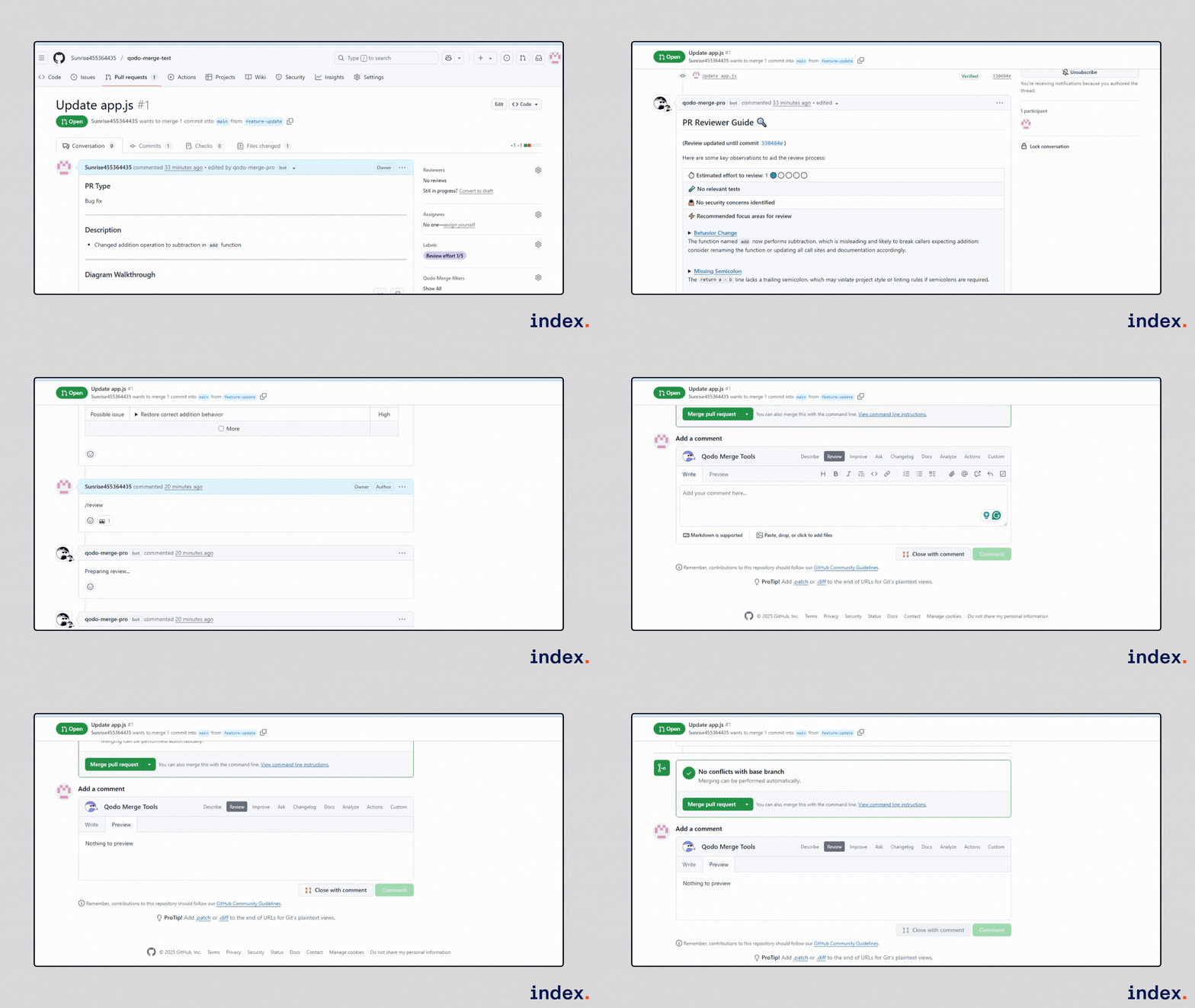
Key features
- Context-Aware PR Chat:
- Chat directly with your PR code using the pull request as context, with private sessions not visible to other users.
- Chat directly with your PR code using the pull request as context, with private sessions not visible to other users.
- Automated Code Reviews:
- Use /review to instantly detect bugs, security issues, and best practice violations.
- Use /review to instantly detect bugs, security issues, and best practice violations.
- Code Improvement Suggestions:
- /improve generates actionable recommendations for code efficiency, maintainability, and robustness.
- /improve generates actionable recommendations for code efficiency, maintainability, and robustness.
- Auto-Generate PR Descriptions:
- /describe writes complete PR summaries with labels and step-by-step details.
- /describe writes complete PR summaries with labels and step-by-step details.
- Private & Secure:
- Code is never sent to external servers; private repo access requires authentication.
- Code is never sent to external servers; private repo access requires authentication.
- Config Export:
- Save preferred PR-Agent settings as a config file for repository or organizational reuse.
- Save preferred PR-Agent settings as a config file for repository or organizational reuse.
- Enhanced Code Suggestions:
- Auto-expand code blocks and enable “quote-and-reply” for precise discussions.
- Auto-expand code blocks and enable “quote-and-reply” for precise discussions.
Pros
- Works right inside GitHub. No need to switch tools; everything happens in your PR view.
- Keeps your code private. For public repos, your code never leaves GitHub.
- It saves time. Automates PR descriptions, reviews, and suggestions in seconds.
- Chat and feedback are based on the actual code in your PR.
- It is free for open-source projects. All features work at no cost for public repositories.
Cons
- To get all features on private projects, you’ll need Qodo Merge Pro.
- Only works on Chromium-based browsers like Chrome, Brave, Edge, Opera, and Arc.
- AI suggestions are helpful, but you should double-check them before merging.
2. Daily.dev
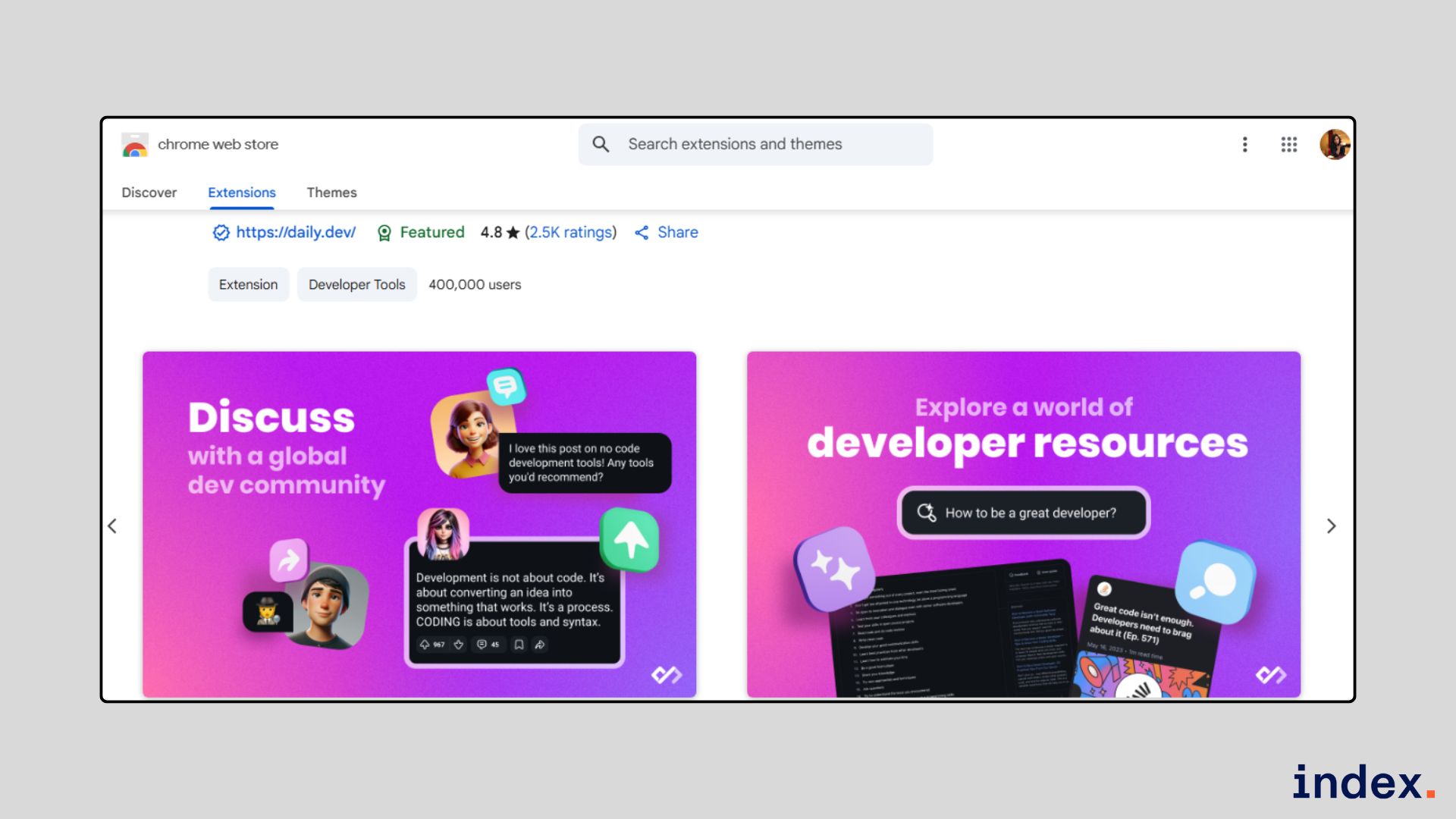
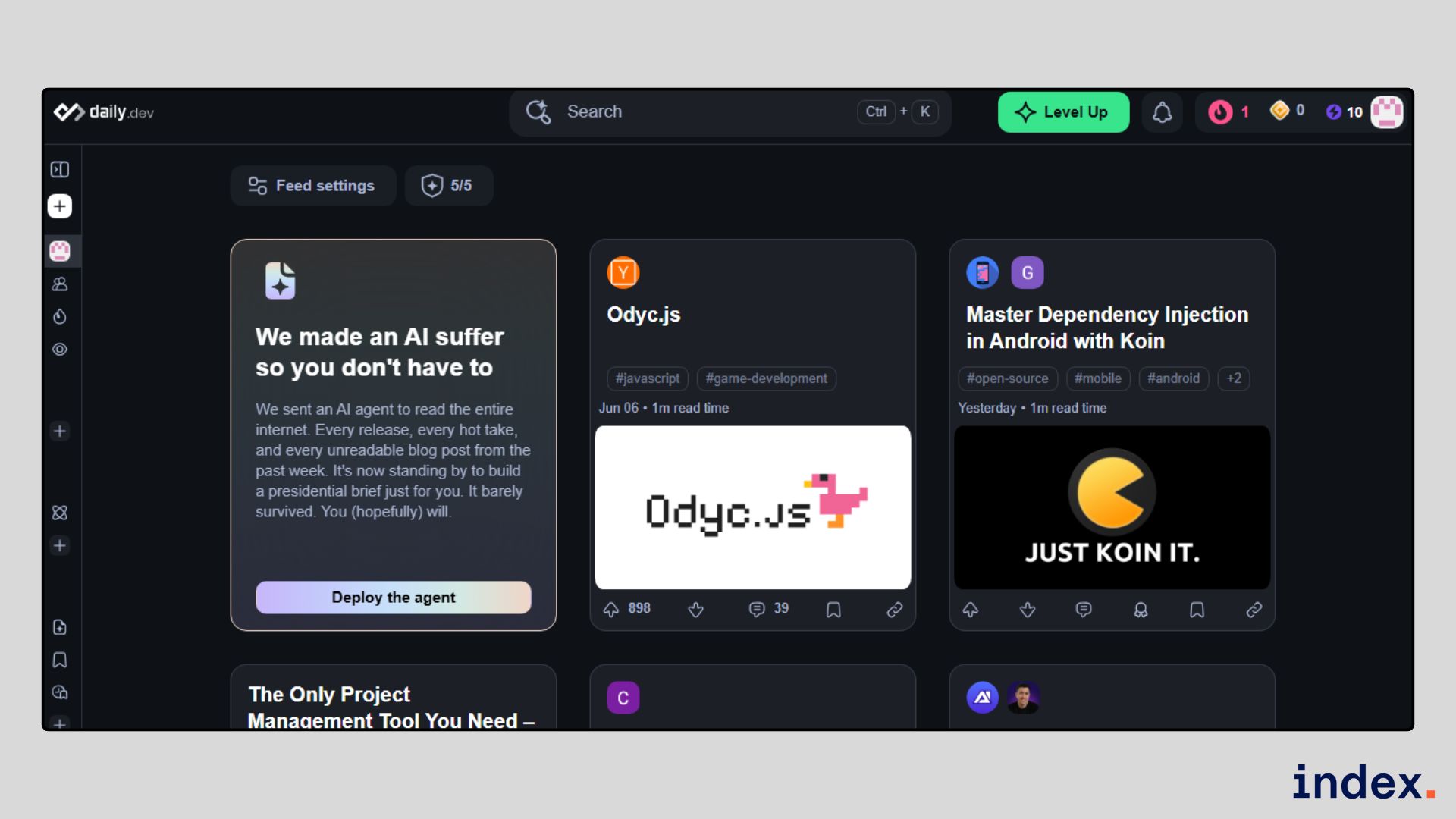
Best for: Staying updated with the latest developer news, tutorials, and community discussions right from your browser’s new tab.
What it does
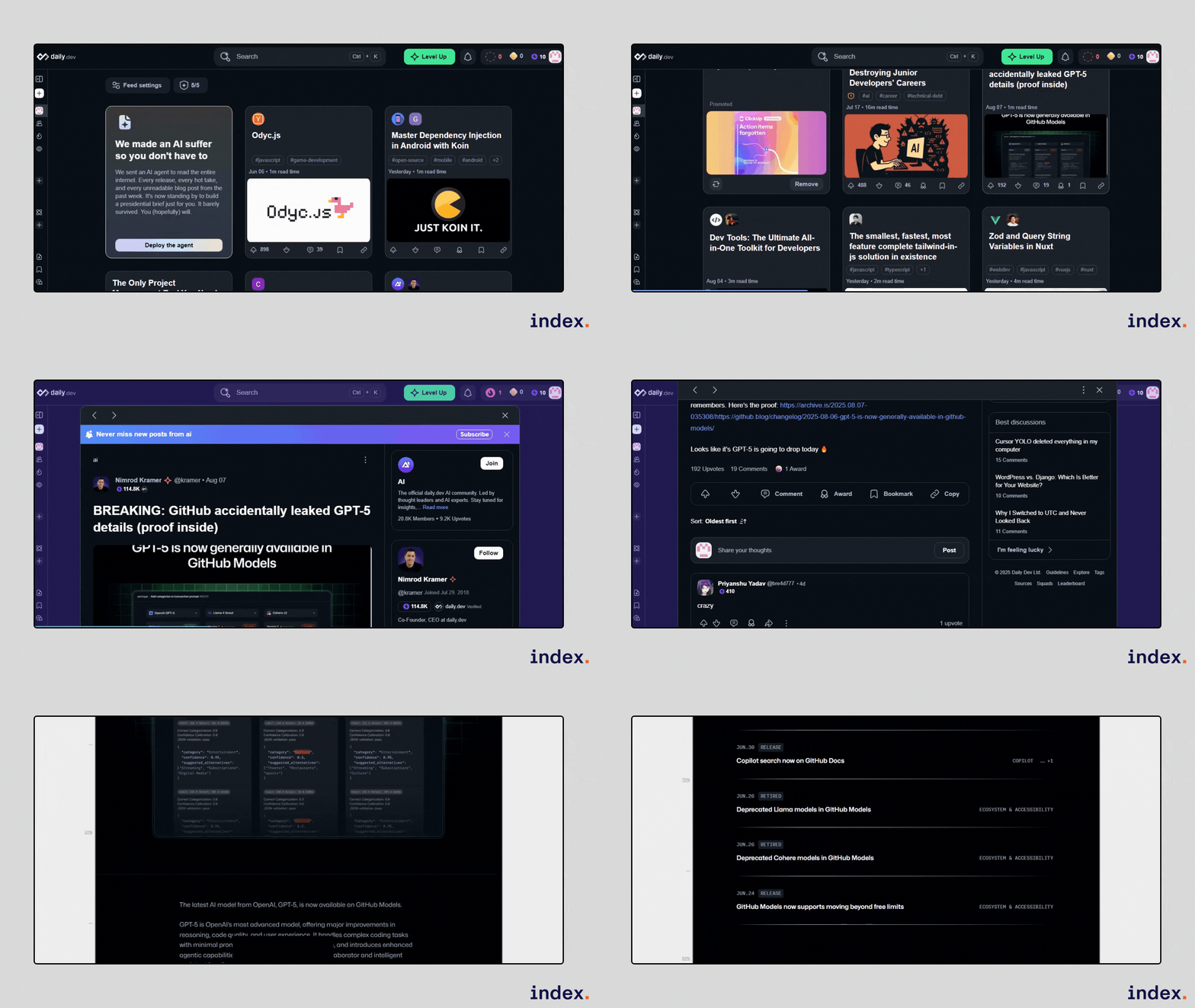
daily.dev is a browser extension that turns your new tab into a personalized feed of tech news, articles, and discussions from over 1,300 developer-focused sources. It helps you discover relevant content based on your interests, join topic-based communities (Squads), and bookmark articles for later. Instead of hunting for updates across multiple sites daily.dev delivers everything in one place to help you stay ahead in the fast-moving tech world.
Key features
- Personalised developer feed:
- Get fresh articles and news tailored to your chosen topics.
- Get fresh articles and news tailored to your chosen topics.
- Squads:
- Join or create focused communities around technologies or interests.
- Join or create focused communities around technologies or interests.
- Smart curation:
- Filters out low-quality content so you only see the most relevant posts.
- Filters out low-quality content so you only see the most relevant posts.
- Bookmarks:
- Save articles to read later with organised folders.
- Save articles to read later with organised folders.
- Cross-device access:
- View your feed and saved content anywhere with your account.
- View your feed and saved content anywhere with your account.
Pros
- It brings all your developer news and updates into one place.
- Feeds are fully customizable, so you only see what’s relevant.
- Lets you connect with other developers through Squads.
- Makes it easy to save and organise articles for later.
- Encourages a daily learning habit by using your new tab page.
Cons
- You must install the extension; there’s no guest mode.
- Requires creating an account before you can use it fully.
- Replaces your blank new tab, which some users may not prefer.
3. Scalenut
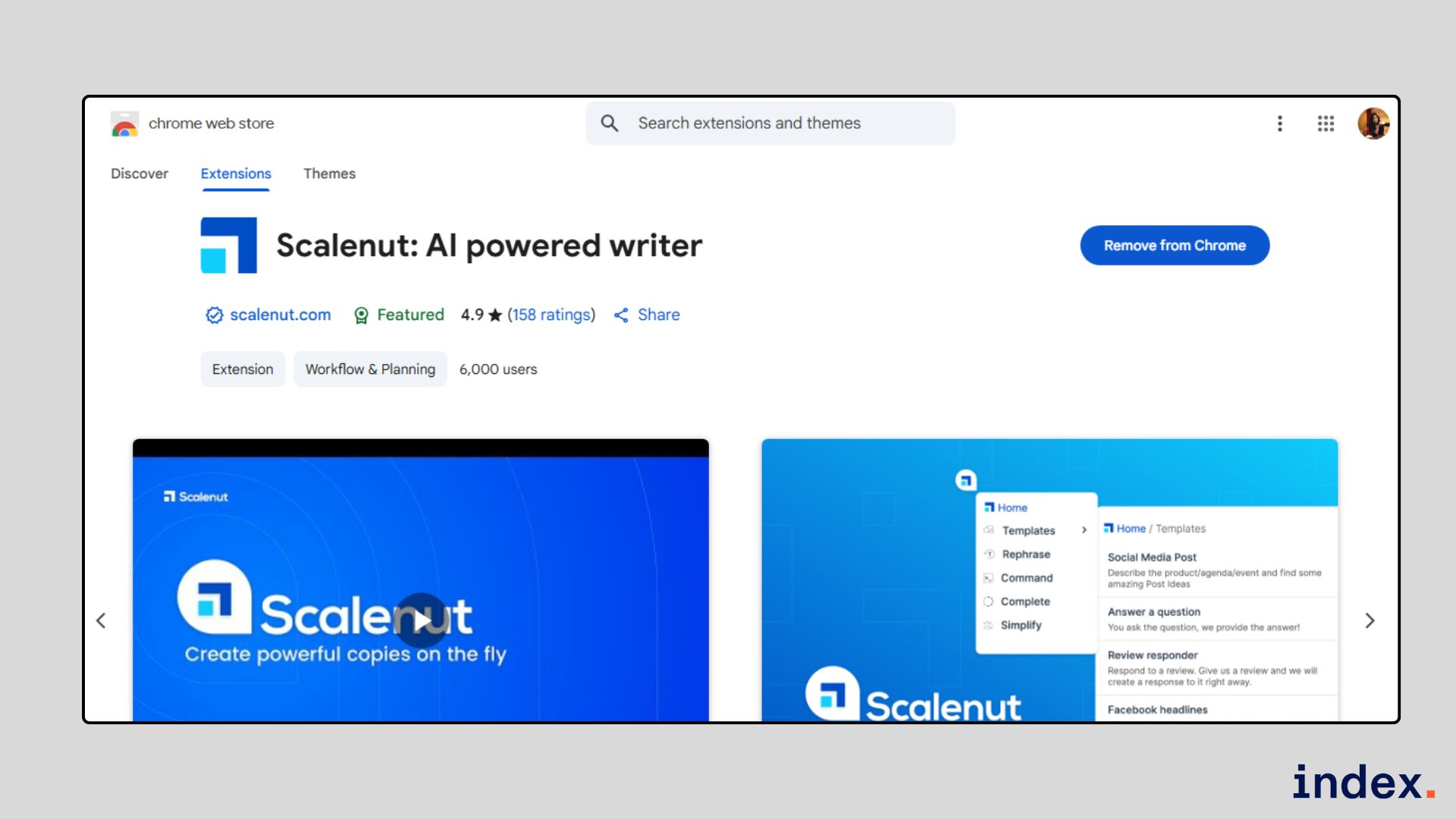
Best for: Quickly creating, rewriting, and optimizing content using AI across any platform.
What it does
Scalenut is an AI-powered writing assistant that integrates directly into your browser, allowing you to produce high-quality, plagiarism-free content in seconds. While it’s mainly designed for marketers, content creators, and SEO professionals, developers working on product documentation, release notes, or in-app messaging can also benefit from its ability to rephrase, simplify, or complete text. Its ready-to-use templates make it easy to create everything from technical emails to blog sections without starting from scratch.
Key features
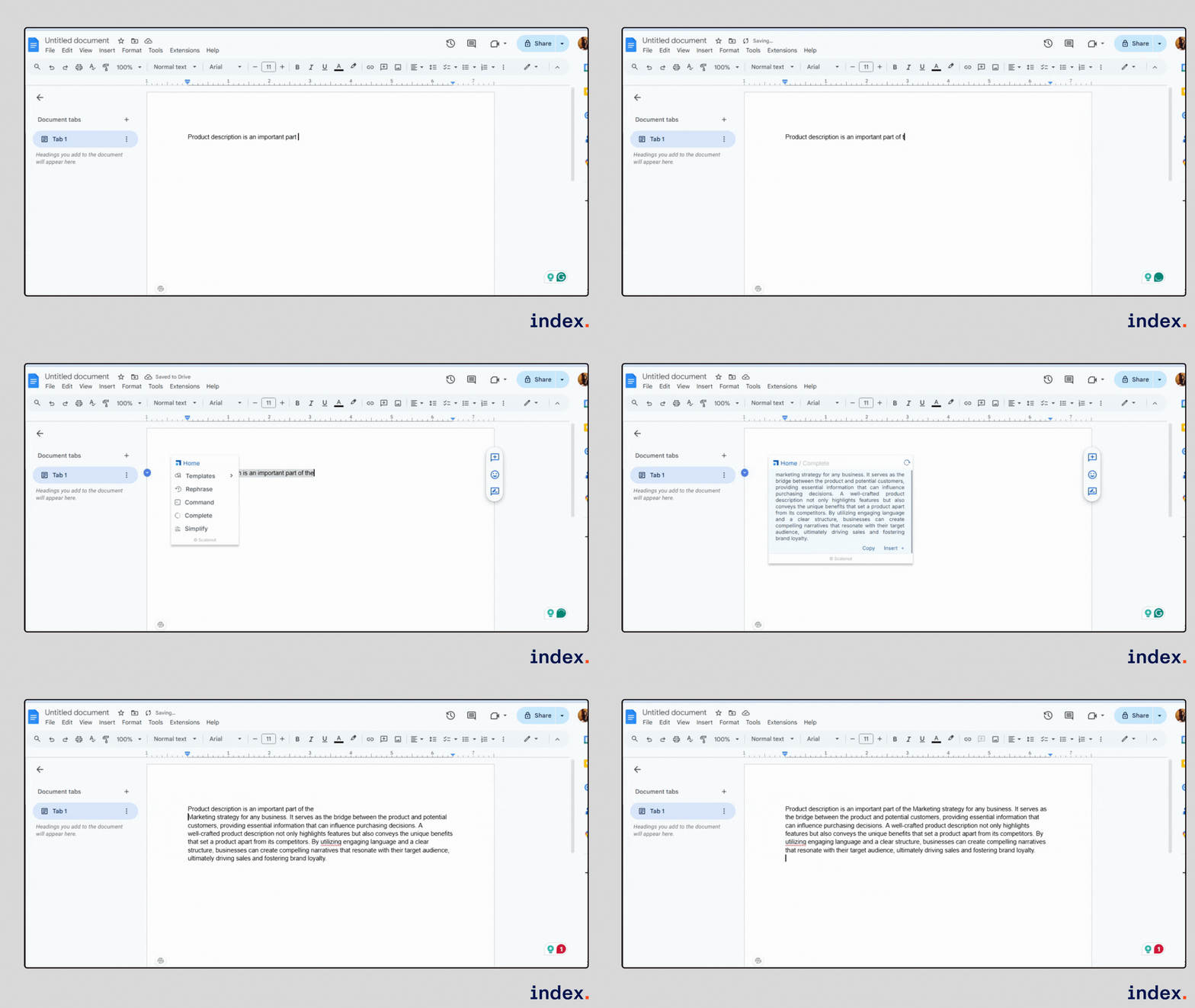
- Templates for multiple use cases:
- Quickly generate emails, ads, social posts, and more.
- Quickly generate emails, ads, social posts, and more.
- Rephrase tool:
- Rewrite sentences into fresh, plagiarism-free versions.
- Rewrite sentences into fresh, plagiarism-free versions.
- Command mode:
- Expand on ideas or get quick paragraphs on any topic.
- Expand on ideas or get quick paragraphs on any topic.
- Complete feature:
- Finish incomplete sentences or paragraphs automatically.
- Finish incomplete sentences or paragraphs automatically.
- Simplify option:
- Turn long or complex sentences into clear, easy-to-read text.
- Turn long or complex sentences into clear, easy-to-read text.
Pros
- Works across popular platforms like Gmail, LinkedIn, Quora, and Google Docs.
- Covers a wide range of writing needs, from short ads to long-form blogs.
- Helps overcome writer’s block with instant AI suggestions.
- Offers rephrasing and simplification to improve readability.
- Produces content that feels natural, not robotic.
Cons
- The free version has a word limit; heavy users will need a paid plan.
- AI-generated content still needs a human check for accuracy and tone.
- Best results require giving clear, detailed prompts.
4. Otter.ai
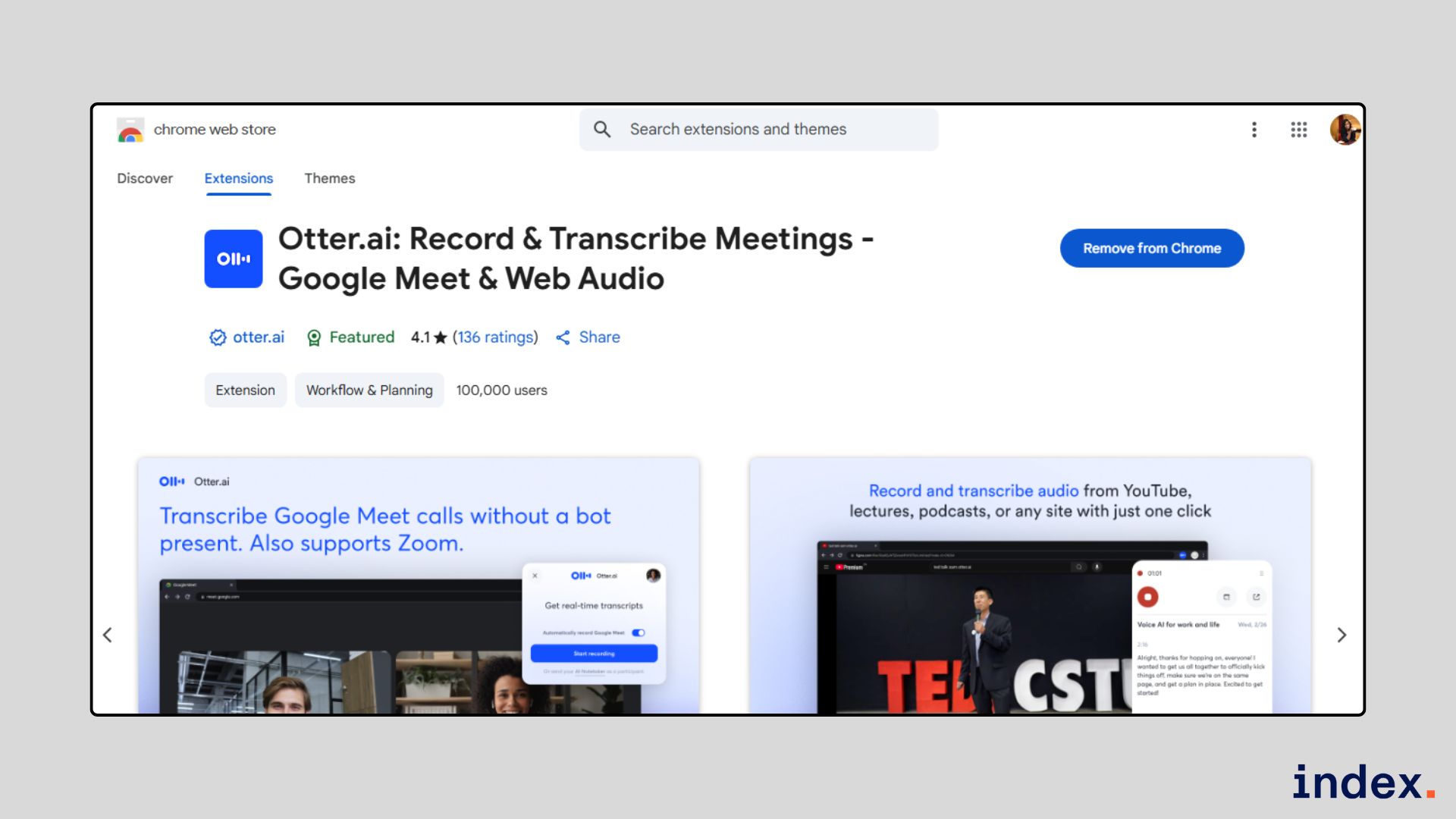
Best for: Recording, transcribing, and summarizing online meetings or browser audio in real time.
What it does
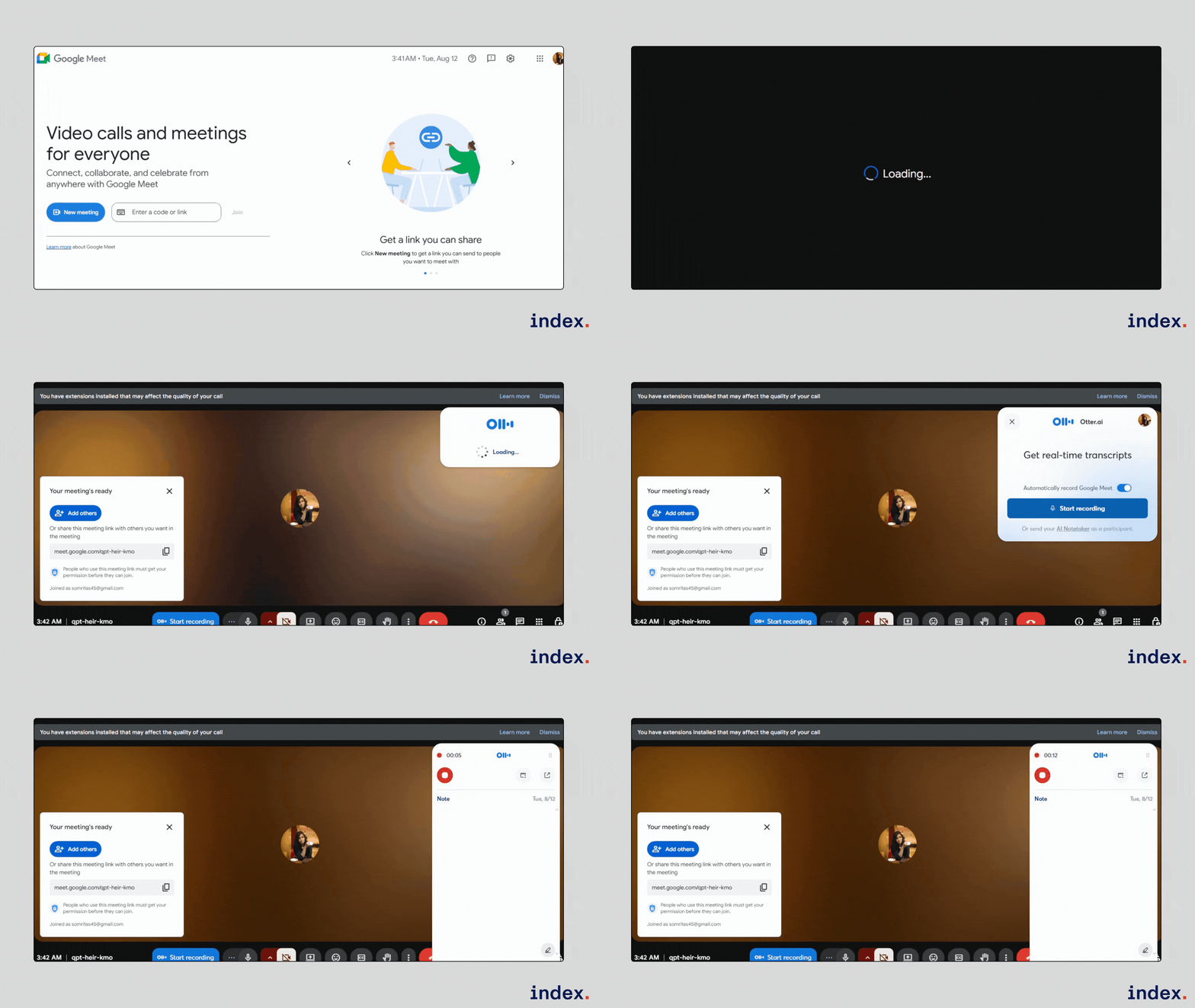
Otter.ai’s Chrome extension brings live transcription, AI-powered summaries, and searchable meeting notes to any audio source in your browser. It’s especially useful for developers, project managers, and remote teams who need to capture discussions from Google Meet, Zoom, Microsoft Teams, or even YouTube tutorials without relying on manual note-taking.
The extension works discreetly, no extra “bot” joining your calls, and lets you ask AI questions like “What are the next steps?” directly from your meeting transcript.
Key features
- Live Transcription for Meetings and Videos:
- Captures spoken content from meetings, webinars, and online videos with high accuracy in real time.
- Captures spoken content from meetings, webinars, and online videos with high accuracy in real time.
- AI-Powered Summaries:
- Automatically generates concise bullet points, action items, and insights after the session ends.
- Automatically generates concise bullet points, action items, and insights after the session ends.
- Chat with Your Transcript:
- Lets you ask AI questions such as deadlines, decisions, or next steps directly from the meeting transcript.
- Lets you ask AI questions such as deadlines, decisions, or next steps directly from the meeting transcript.
- No-Bot Recording:
- Records Google Meet and Microsoft Teams sessions without adding a visible participant, allowing discreet note-taking.
- Records Google Meet and Microsoft Teams sessions without adding a visible participant, allowing discreet note-taking.
- Works Across Websites:
- Transcribes audio from YouTube, online courses, podcasts, and any browser tab.
- Transcribes audio from YouTube, online courses, podcasts, and any browser tab.
- Search & Export Tools:
- Makes transcripts searchable and allows exporting to Google Docs, Slack, or integrated CRM platforms.
- Makes transcripts searchable and allows exporting to Google Docs, Slack, or integrated CRM platforms.
Pros
- Accurate real-time transcription for various accents and sources.
- Works in-browser without installing extra meeting bots.
- Automatically creates summaries and action items, saving time.
- Handles a wide range of use cases—meetings, lectures, videos, and more.
- Integrates with Google Calendar, Slack, Notion, Salesforce, and other tools.
Cons
- Requires creating an Otter.ai account to use the extension.
- Free plan limits transcription minutes; paid plan needed for heavy usage.
- Accuracy can drop in noisy environments or with overlapping voices.
5. Fake Filler
Best for: Quickly filling all form fields with dummy data for testing and development.
What it does
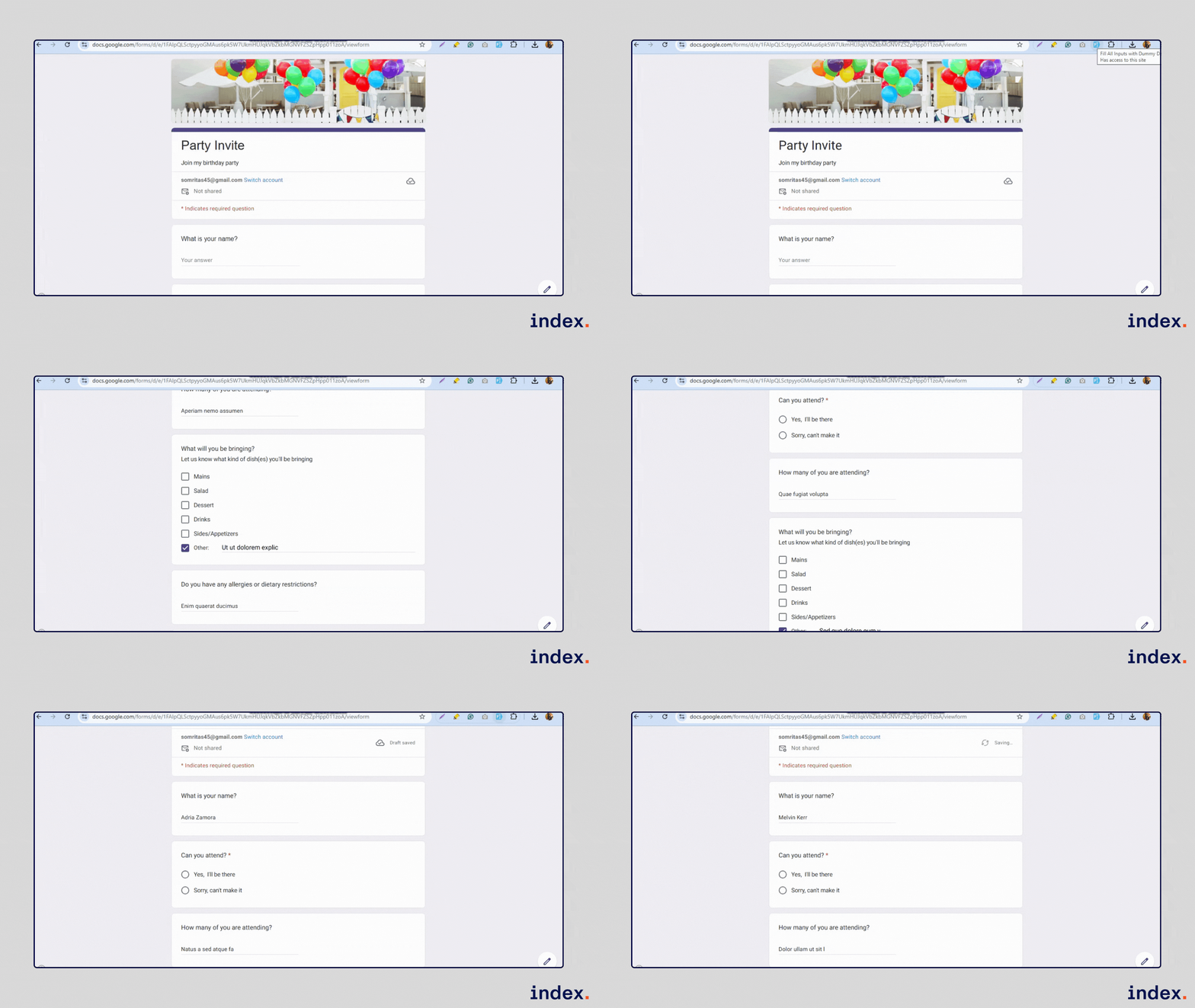
Fake Filler is a browser extension designed for developers and testers who regularly work with web forms. Instead of typing values into each field manually, it automatically populates all visible inputs with realistic-looking fake data, names, emails, phone numbers, addresses, and more.
This makes it ideal for testing form layouts, validation logic, and user flows without wasting time entering information repeatedly.
Key features
- One-Click Dummy Data Fill:
- Instantly fills all form fields with randomly generated names, emails, phone numbers, and other fake values.
- Instantly fills all form fields with randomly generated names, emails, phone numbers, and other fake values.
- Custom Field Configuration:
- Create custom data rules for specific fields, matching your project’s unique testing needs.
- Create custom data rules for specific fields, matching your project’s unique testing needs.
- Sensible Defaults:
- Works out-of-the-box with pre-set values for most common field types.
- Works out-of-the-box with pre-set values for most common field types.
- Selective Field Ignoring:
- Automatically skips CAPTCHAs, hidden, disabled, and read-only fields.
- Automatically skips CAPTCHAs, hidden, disabled, and read-only fields.
- Cross-Browser Settings Sync:
- Keeps your custom configurations synced across devices and browsers.
- Keeps your custom configurations synced across devices and browsers.
Pros
- Huge time saver for developers and testers working on multiple forms.
- Highly customizable to match different project requirements.
- Simple to use with no steep learning curve.
- Skips irrelevant fields like CAPTCHA and hidden inputs automatically.
- Works across most modern browsers and frameworks, including React, Vue.js, and Angular.
Cons
- May not detect certain unconventional field naming patterns.
- Doesn’t generate temporary/real emails for verification-based testing.
- Limited free version, Pro plan needed for unlimited custom fields.
6. ColorZilla
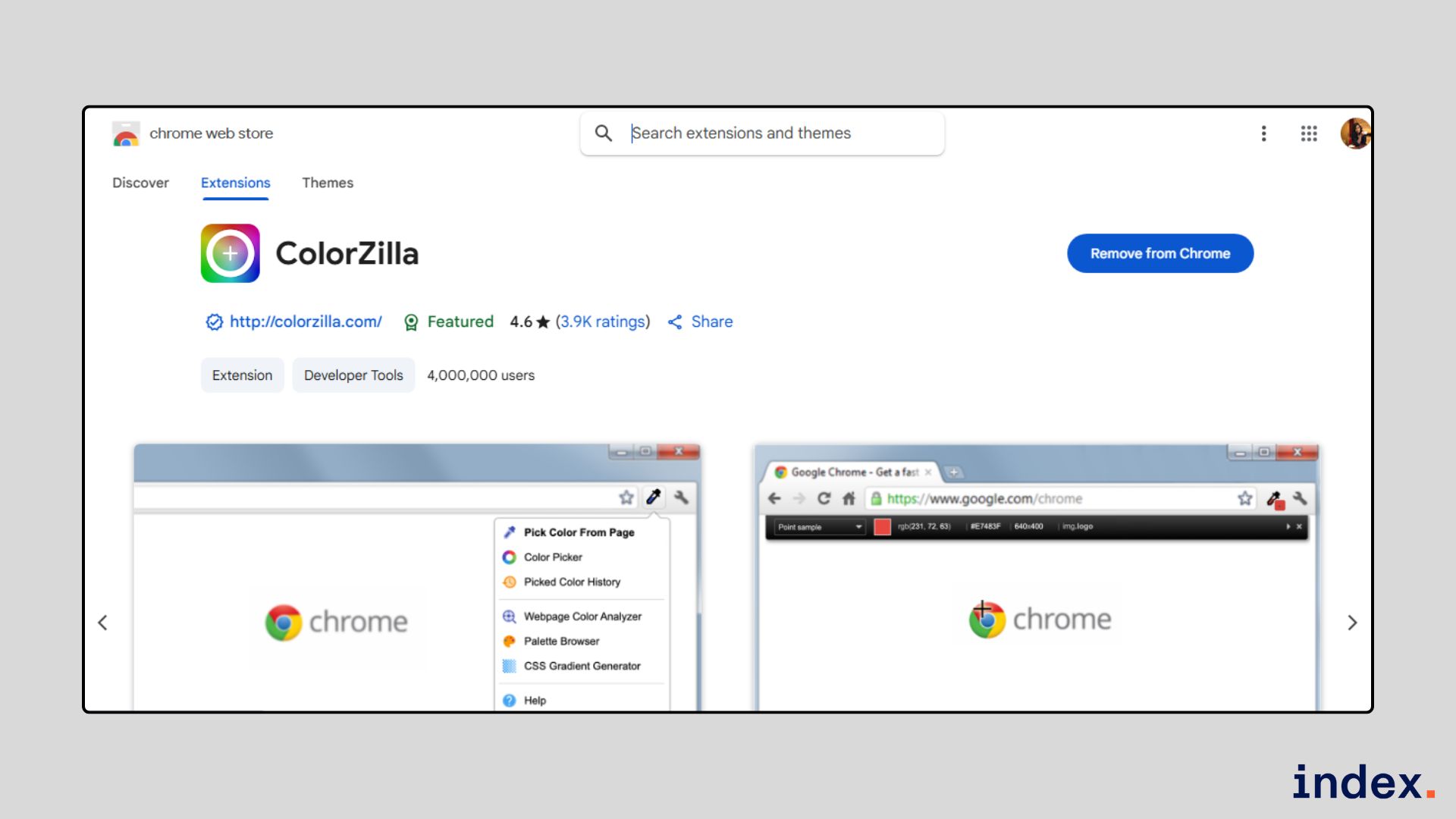
Best for: Quickly picking, analyzing, and managing colors directly from any webpage.

What it does
ColorZilla is a powerful color-related toolkit for web developers and designers. It allows you to pick colors from any pixel on a webpage, analyze color palettes, create CSS gradients, and copy color values instantly. It’s especially handy when you need to match website colors, design with precision, or speed up your UI/UX workflow without switching between design tools.

Key features
- Eyedropper Tool:
- Grab the exact color of any pixel on a webpage or even outside the browser.
- Grab the exact color of any pixel on a webpage or even outside the browser.
- Advanced Color Picker:
- A Photoshop-like color picker for selecting and tweaking colors.
- A Photoshop-like color picker for selecting and tweaking colors.
- Webpage Color Analyzer:
- Instantly generate a full color palette from any site and locate corresponding elements.
- Instantly generate a full color palette from any site and locate corresponding elements.
- CSS Gradient Generator:
- Create multi-stop gradients and export them as ready-to-use CSS.
- Create multi-stop gradients and export them as ready-to-use CSS.
- Palette Viewer & Color History:
- View pre-installed palettes and revisit your recently picked colors.
- View pre-installed palettes and revisit your recently picked colors.
- Element Info Display:
- See HTML tag name, class, ID, and size for elements under the cursor.
- See HTML tag name, class, ID, and size for elements under the cursor.
- Auto Copy to Clipboard:
- Automatically copy selected colors in HEX, RGB, or other formats.
- Automatically copy selected colors in HEX, RGB, or other formats.
- Dynamic Element Color Picking:
- Capture colors from hover states or interactive elements.
- Capture colors from hover states or interactive elements.
Pros
- Extremely accurate color sampling, even for dynamic elements.
- Wide range of tools in a single extension (eyedropper, picker, gradient generator).
- Saves time by auto-copying colors to the clipboard.
- Works at any zoom level with adjustable sampling sizes.
- Privacy-focused, does not collect browsing data.
Cons
- Requires broad website access permissions, which may concern privacy-conscious users.
- Some users report occasional clipboard copy issues.
- Interface can feel slightly dated compared to newer design tools.
7. Wappalyzer
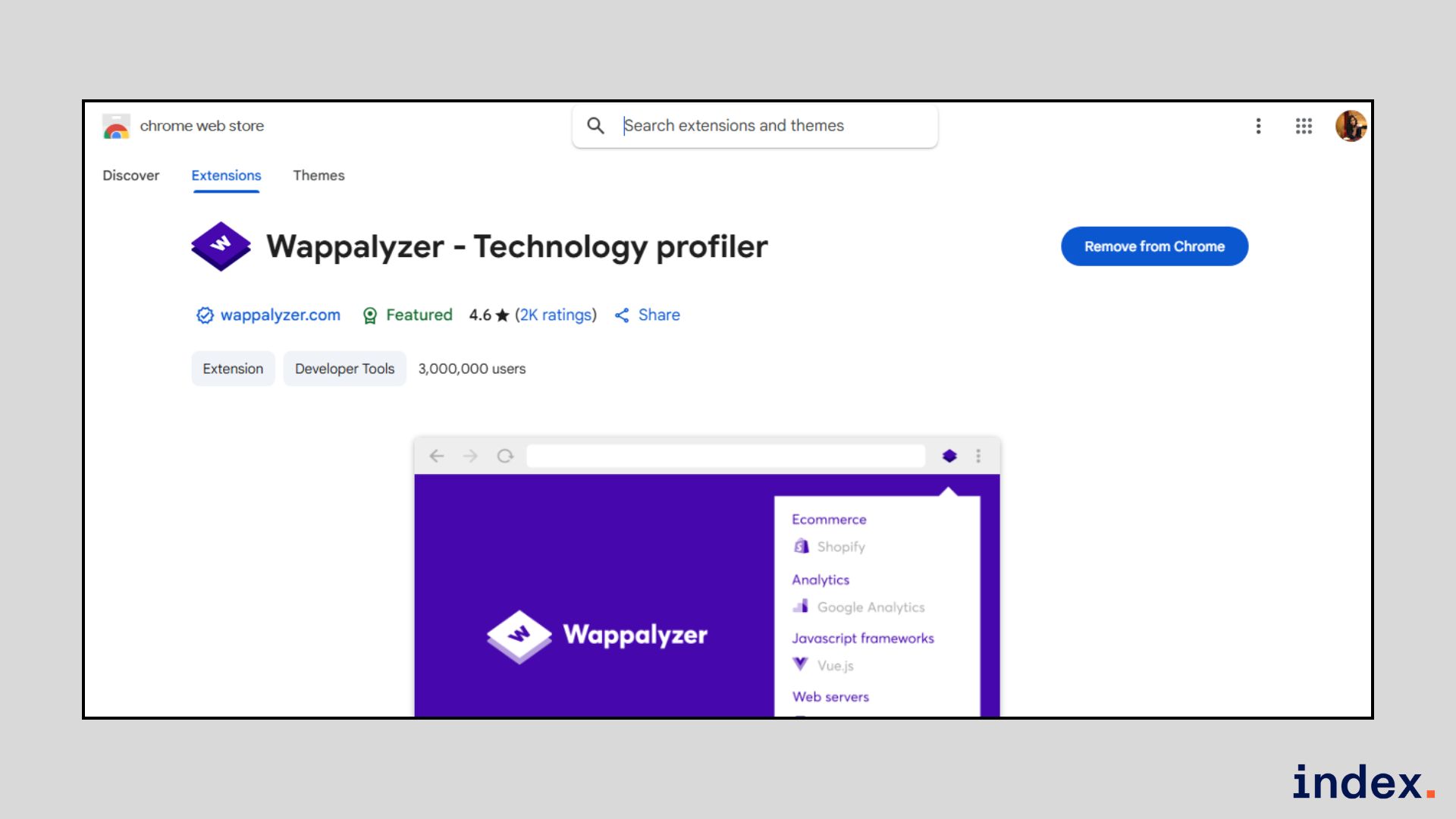
Best for: Instantly identifying the technology stack of any website you visit.
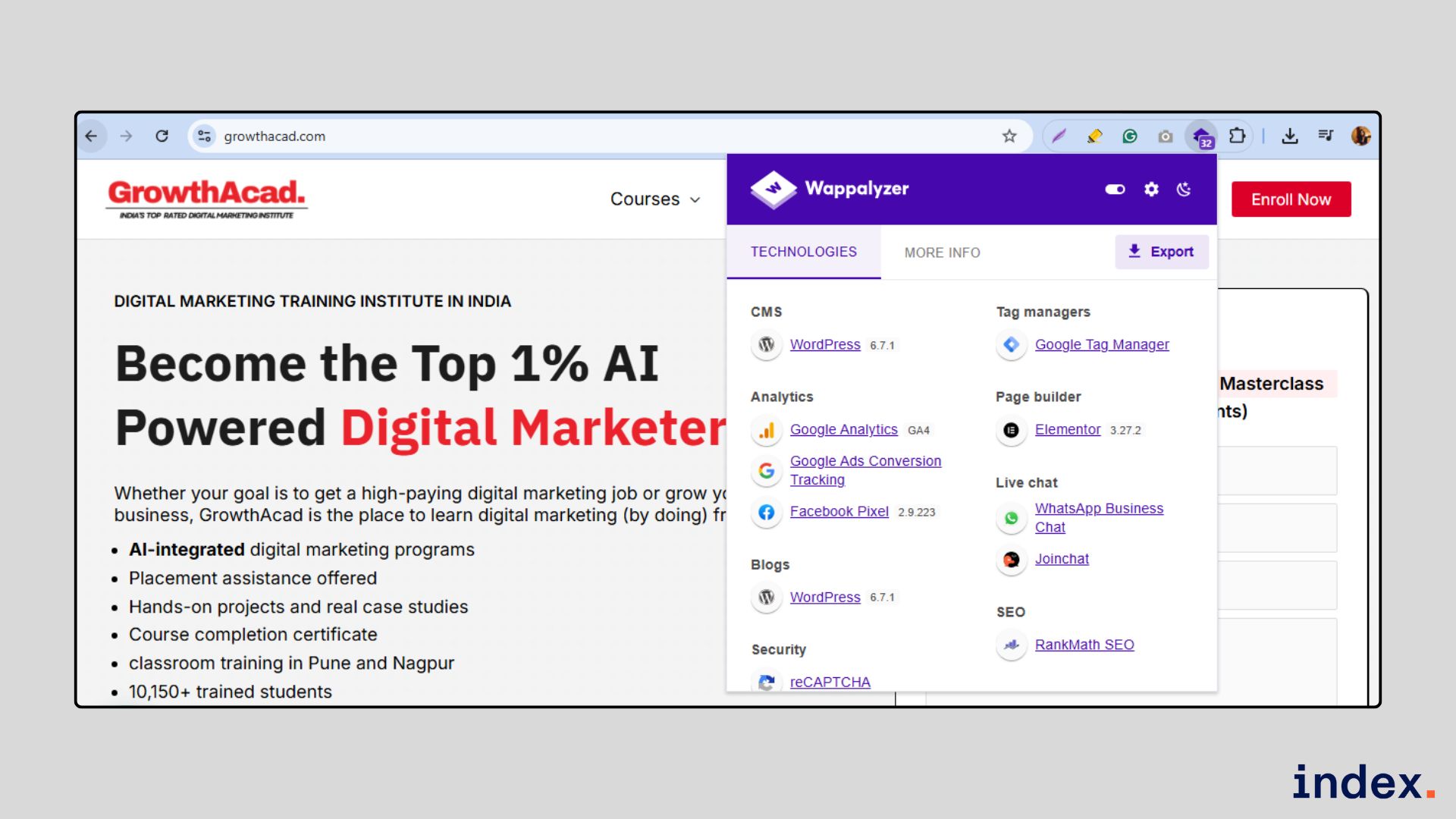
What it does
Wappalyzer is a technology profiler that reveals the frameworks, programming languages, CMS platforms, eCommerce systems, analytics tools, payment processors, and hundreds of other technologies powering a website.
It’s widely used by developers, marketers, and sales teams for tasks like competitor research, market analysis, and lead generation.
With just one click, you can see exactly what tools and platforms a site is built on, making it easier to plan integrations, analyze competition, or target prospects based on their tech stack.

Key features
- Comprehensive Technology Detection:
- Identifies over a thousand technologies across dozens of categories, from CMS and JavaScript libraries to CRM tools and payment systems.
- Identifies over a thousand technologies across dozens of categories, from CMS and JavaScript libraries to CRM tools and payment systems.
- Lead Generation Tools:
- Create lists of companies using specific technologies, complete with contact information, social profiles, and traffic estimates.
- Create lists of companies using specific technologies, complete with contact information, social profiles, and traffic estimates.
- Market Research & Competitor Analysis:
- Compare technology adoption trends, monitor competitor stack changes, and discover potential opportunities.
- Compare technology adoption trends, monitor competitor stack changes, and discover potential opportunities.
- Website Monitoring Alerts:
- Get notifications when a site changes its technology stack, such as switching CMS or adding new integrations.
- Get notifications when a site changes its technology stack, such as switching CMS or adding new integrations.
- API Access:
- Perform bulk technology lookups, enrich datasets, and integrate Wappalyzer’s insights into your own tools or workflows.
- Perform bulk technology lookups, enrich datasets, and integrate Wappalyzer’s insights into your own tools or workflows.
- CRM Integration:
- Sync technographic data directly with Salesforce, HubSpot, Pipedrive, and other CRMs.
- Sync technographic data directly with Salesforce, HubSpot, Pipedrive, and other CRMs.
Pros
- Quick, one-click detection of a site’s tech stack.
- Covers an extensive range of technology categories and vendors.
- Useful for both technical (development) and business (sales/marketing) purposes.
- Integrates with popular CRMs and marketing tools.
- Offers API for bulk data enrichment and automation.
Cons
- Accuracy may vary for sites using custom or heavily obfuscated code.
- The free plan is limited; some features require a paid subscription.
- Occasional false positives or missed detections on complex websites.
8. Lighthouse
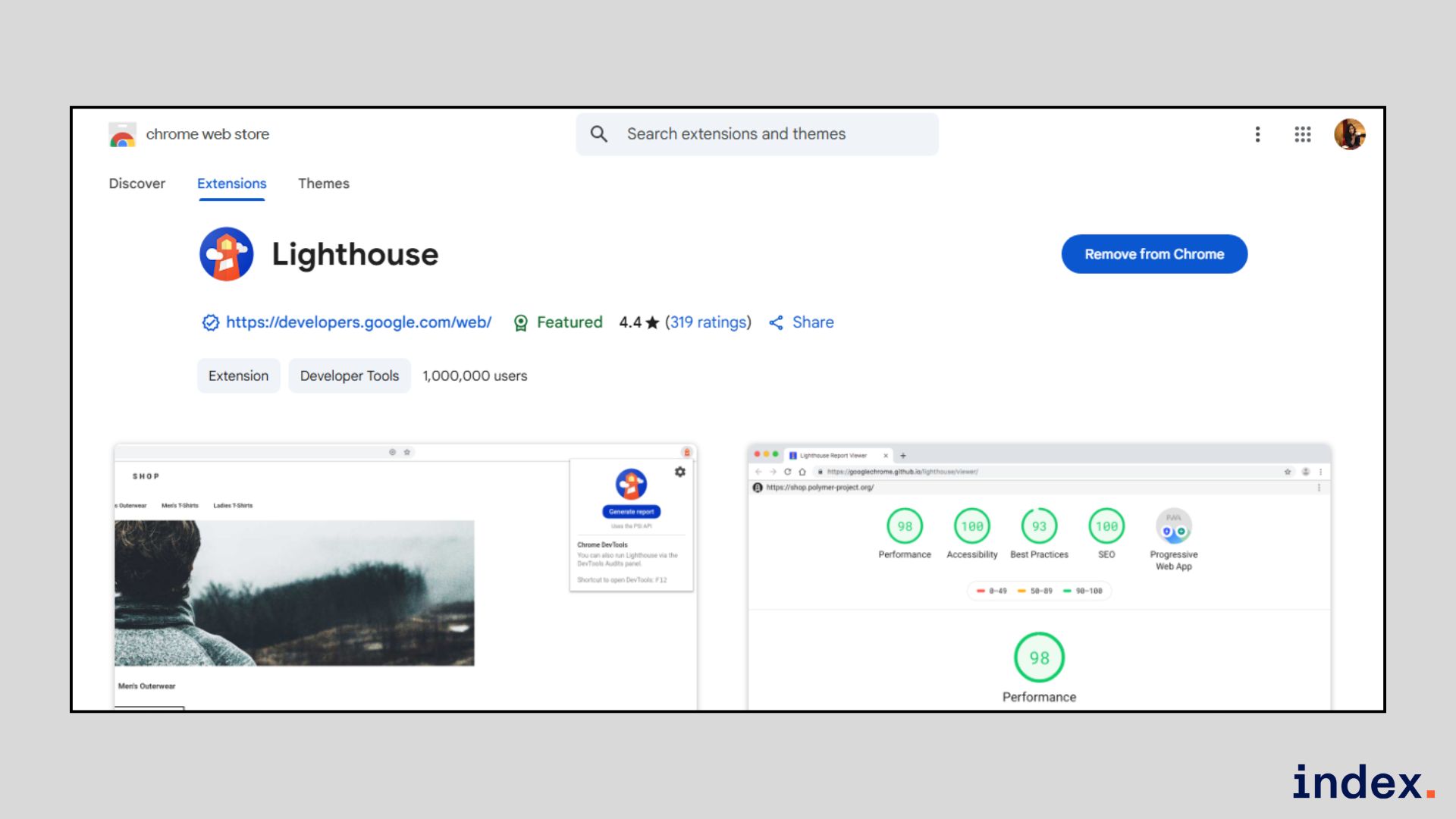
Best for: Auditing and improving website performance, accessibility, SEO, and best practices.
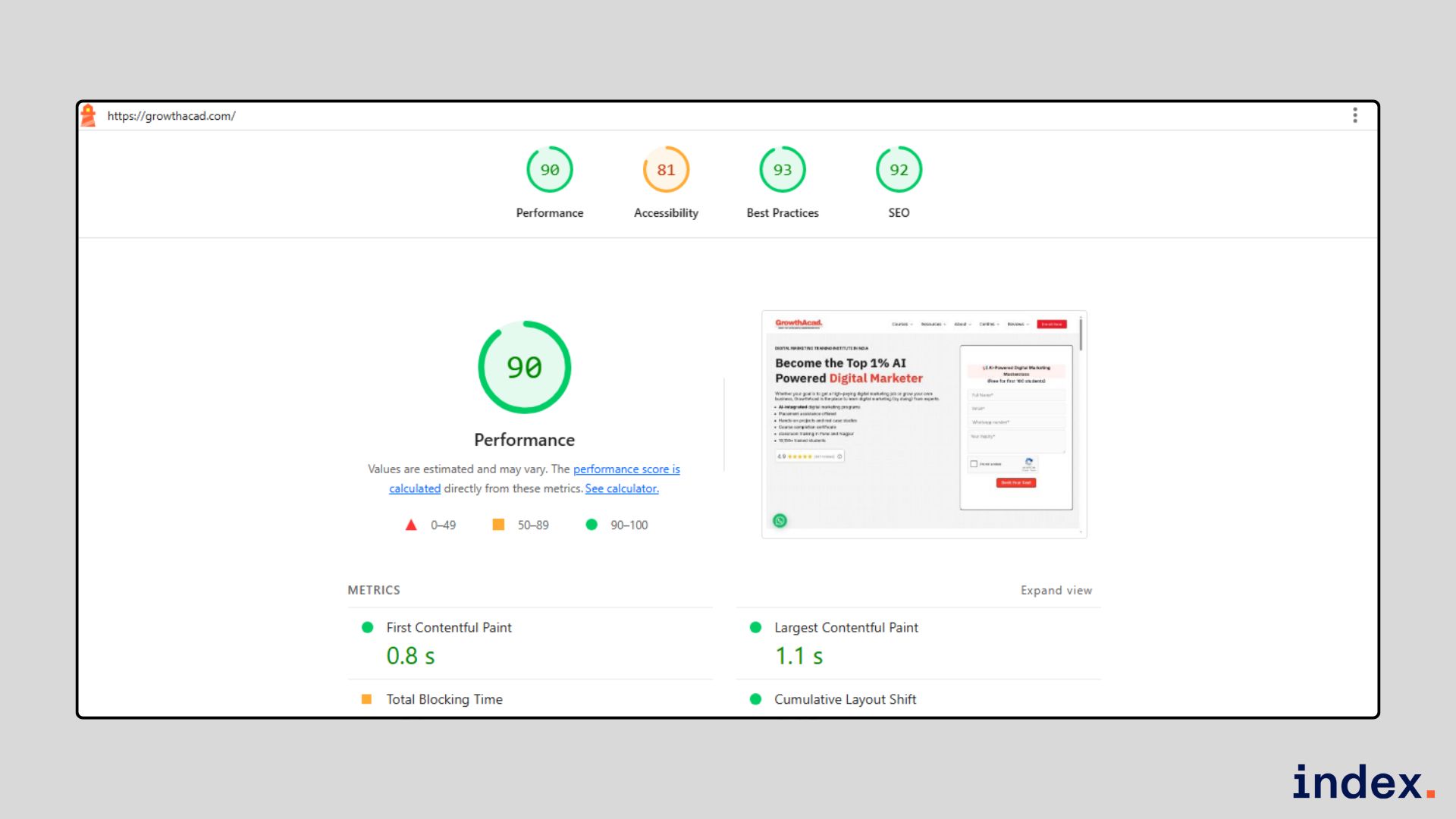
What it does
Lighthouse is an open-source, automated auditing tool by Google that helps developers improve the quality of their web pages. It runs tests on performance, accessibility, SEO, and coding best practices, then generates a detailed report with actionable insights.
You can run it directly in Chrome DevTools, via the command line, as a Node module, or through PageSpeed Insights. It’s especially useful for identifying slow-loading elements, accessibility barriers, and SEO issues, all in one place.

Key features
- Performance Audits:
- Analyzes page speed, resource loading, and rendering performance, offering clear suggestions to make your site faster.
- Analyzes page speed, resource loading, and rendering performance, offering clear suggestions to make your site faster.
- Accessibility Checks:
- Flags issues that could make your site hard to use for people with disabilities, including screen reader compatibility.
- Flags issues that could make your site hard to use for people with disabilities, including screen reader compatibility.
- SEO Audits:
- Evaluates your site’s search engine readiness, highlighting missing meta tags, improper headings, and mobile-friendliness.
- Evaluates your site’s search engine readiness, highlighting missing meta tags, improper headings, and mobile-friendliness.
- Best Practices Reports:
- Reviews your site for modern coding standards, security protocols, and safe browsing measures.
- Reviews your site for modern coding standards, security protocols, and safe browsing measures.
- Progressive Web App (PWA) Testing:
- Assesses your site’s ability to function offline and deliver an app-like experience.
- Assesses your site’s ability to function offline and deliver an app-like experience.
- Integration Options:
- Run it inside DevTools, through CLI for automation, or integrate with CI/CD pipelines to prevent regressions.
- Run it inside DevTools, through CLI for automation, or integrate with CI/CD pipelines to prevent regressions.
Pros
- Free and open-source with regular updates from Google.
- Easy to run in Chrome without installing extra tools.
- Provides actionable recommendations for multiple site aspects.
- Supports authenticated page testing in DevTools.
- Integrates well with automation workflows and CI/CD pipelines.
Cons
- Can sometimes produce false positives or overly generic advice.
- Some fixes require advanced technical knowledge to implement.
- Results may vary slightly depending on network and test environment.
Additional Chrome extensions for developers
9. Octotree
Best for: Navigating and reviewing GitHub repositories faster.
What it does
Octotree enhances GitHub by adding a fast, IDE-like code tree in your browser. It allows developers to explore files, search quickly, review pull requests, and bookmark important code sections without leaving the GitHub interface. It works for public, private, and even large repositories, supporting both free and Pro features.
Key features
- IDE-like Code Tree:
- Quickly navigate large repositories with a collapsible sidebar file structure.
- Quickly navigate large repositories with a collapsible sidebar file structure.
- Tree-based Search:
- Search for files or directories directly in the code tree view.
- Search for files or directories directly in the code tree view.
- Omni Bookmarking:
- Save and access frequently used repos, issues, PRs, or files instantly.
- Save and access frequently used repos, issues, PRs, or files instantly.
- Code Review Pack (Pro):
- View diffs, navigate PRs, and review entire files in context.
- View diffs, navigate PRs, and review entire files in context.
- Multiple GitHub Accounts:
- Manage and switch between personal and work accounts easily.
10. Checkbot
Best for: Website SEO, speed, and security audits
What it does
Checkbot is a Chrome extension that audits websites for over 50 SEO, speed, and security best practices. It crawls hundreds of pages at once, detecting issues like broken links, duplicate content, slow-loading assets, and insecure forms. It’s designed for developers, SEO specialists, and site owners who want to improve site health, rankings, and user experience.
Key Features
- SEO Audits:
- Checks titles, descriptions, ALT tags, canonical URLs, and duplicate content.
- Checks titles, descriptions, ALT tags, canonical URLs, and duplicate content.
- Speed Tests:
- Detects unminified code, render-blocking resources, and caching issues.
- Detects unminified code, render-blocking resources, and caching issues.
- Security Checks:
- Scans for HTTPS errors, mixed content, and missing security headers.
11. LT Debug
Best for: Debugging and testing web applications across multiple browsers and devices
What it does
LT Debug is a Chrome extension from LambdaTest that helps developers and testers debug, modify, and test web applications faster. It integrates directly with LambdaTest’s cloud platform, allowing you to record user flows, run live interactive tests, take cross-browser screenshots, and manipulate network requests or page behavior, all without leaving your browser.
Key Features
- Replay on LambdaTest Cloud:
- Record and replay user flows on 3000+ browser-OS combinations.
- Record and replay user flows on 3000+ browser-OS combinations.
- Real-Time Testing:
- Launch live tests on real desktop and mobile devices directly from your browser.
- Launch live tests on real desktop and mobile devices directly from your browser.
- Screenshot Testing:
- Capture website screenshots across 25+ browsers and resolutions instantly.
- Capture website screenshots across 25+ browsers and resolutions instantly.
- HTTP Header Modification:
- Add, edit, or remove request headers to simulate different scenarios.
- Add, edit, or remove request headers to simulate different scenarios.
- Network Throttling:
- Slow down requests for specific URLs to test performance under constraints.
- Slow down requests for specific URLs to test performance under constraints.
- Request Blocking & Redirects:
- Block unwanted requests or redirect pages for quick testing.
- Block unwanted requests or redirect pages for quick testing.
- User-Agent Switching:
- Simulate different devices, browsers, and bots instantly.
- Simulate different devices, browsers, and bots instantly.
- Script & CSS Injection:
- Insert custom JS/CSS into any page for real-time UI and behavior changes
- Insert custom JS/CSS into any page for real-time UI and behavior changes
- CORS Enabling:
- Add CORS headers for easier cross-domain request testing.
12. Ghostery
Best for: Blocking ads and trackers for a faster, more private browsing experience
What it does
Ghostery is a privacy-focused browser extension that blocks ads, trackers, and intrusive cookie pop-ups while speeding up your browsing experience. It’s designed for users who want a clean, distraction-free web without sacrificing performance. Beyond blocking, it gives you detailed insights into the trackers running on each site and allows you to make informed privacy decisions. It works across major browsers and integrates with Ghostery’s Privacy Suite, including private search and WhoTracks.Me database.
Key features
- Ad Blocking:
- Removes intrusive ads, including banners, pop-ups, and video ads, to make browsing cleaner and faster.
- Removes intrusive ads, including banners, pop-ups, and video ads, to make browsing cleaner and faster.
- Tracker Blocking:
- Stops websites from collecting data on your online activities by blocking tracking scripts and cookies.
- Stops websites from collecting data on your online activities by blocking tracking scripts and cookies.
- Never-Consent Mode:
- Automatically declines cookie consent pop-ups, saving you time and clicks.
- Automatically declines cookie consent pop-ups, saving you time and clicks.
- Tracker Insights:
- Shows detailed information about trackers on each site, including their type and company source.
- Shows detailed information about trackers on each site, including their type and company source.
- Search Engine Tracker Preview:
- Displays tracker data alongside search results so you can choose safer sites before clicking.
Explore a curated list of 20 high-impact open-source GitHub projects.
Comparison table of top Chrome extensions for developers
| Extension | Best For | Key Highlight |
| Qodo Merge AI | AI-powered GitHub PR reviews | Context-aware code feedback inside GitHub |
| daily.dev | Developer news & updates | Personalized tech feed in a new tab |
| Scalenut | AI writing & documentation | Templates + rephrasing for docs, notes |
| Otter.ai | Meeting transcription & summaries | AI summaries + searchable notes |
| Fake Filler | Web form testing | One-click dummy data fill |
| ColorZilla | UI color work | Eyedropper & CSS gradient generator |
| Wappalyzer | Tech stack detection | See frameworks & tools instantly |
| Lighthouse | Website audits | Performance, SEO, accessibility checks |
| Octotree | GitHub navigation | IDE-like code tree in browser |
| Checkbot | SEO, speed, security audits | Crawls pages for 50+ best practices |
| LT Debug | Cross-browser testing | Replay & debug on 3000+ browser setups |
| Ghostery | Privacy & ad blocking | Blocks ads, trackers, cookies |
Final words
At the end of the day, a good Chrome extension isn’t just “nice to have”, it’s like having an extra set of hands (or an extra brain) right in your browser. The extensions here can help you remove bugs faster, write cleaner code, and stay in the loop without drowning in tabs.
You can try a few, keep the ones that genuinely help, and you’ll notice the difference in how smoothly your workday runs.
Join Index.dev to get matched with global remote jobs.
FAQs
What is an AI Chrome extension?
An AI Chrome extension is a browser add-on that uses artificial intelligence to automate tasks, provide insights, or improve workflows directly within Chrome or other Chromium-based browsers.
Can AI Chrome extensions improve coding productivity?
Yes. AI Chrome extensions can speed up code reviews, generate documentation, detect bugs, automate testing, and even help with design tasks, all without leaving your browser.
What are the best AI Chrome extensions for developers in 2025?
Some of the top AI-powered Chrome extensions for developers include Qodo Merge AI for GitHub code reviews, daily.dev for tech news, Scalenut for documentation, Otter.ai for meeting transcripts, Fake Filler for form testing, and ColorZilla for UI color work.
Are AI Chrome extensions safe to use for coding projects?
Most reputable extensions, like Qodo Merge AI or Lighthouse, are safe if installed from official sources. Always review permissions, privacy policies, and ensure they align with your project’s security requirements.
Do Chrome extensions slow down my browser?
Some extensions can affect browser speed if they run heavy background processes. To avoid slowdowns, keep only the extensions you use regularly and disable or remove unused ones.


